
This version of GitHub Enterprise Server will be discontinued on 2026-04-09. No patch releases will be made, even for critical security issues. For better performance, improved security, and new features, upgrade to the latest version of GitHub Enterprise Server. For help with the upgrade, contact GitHub Enterprise support.

Using GitHub preset rules to prioritize Dependabot alerts

Focus on alerts that matter by auto-dismissing low impact development alerts for npm dependencies.

Who can use this feature?

  • Organization owners
  • Security managers
  • Users with admin access (can enable, disable, and view GitHub presets for the repository)

In this article

Prerequisites

Before you enable GitHub presets for your repository, you should be familiar with their functionality and purpose. See About Dependabot auto-triage rules.

Enabling GitHub preset rules

  1. On GitHub, navigate to the main page of the repository.

  2. Under your repository name, click Settings. If you cannot see the "Settings" tab, select the dropdown menu, then click Settings.

    Screenshot of a repository header showing the tabs. The "Settings" tab is highlighted by a dark orange outline.

  3. In the "Security" section of the sidebar, click Code security and analysis.

  4. In the "Dependabot" section, to the right of "Dependabot rules", click .
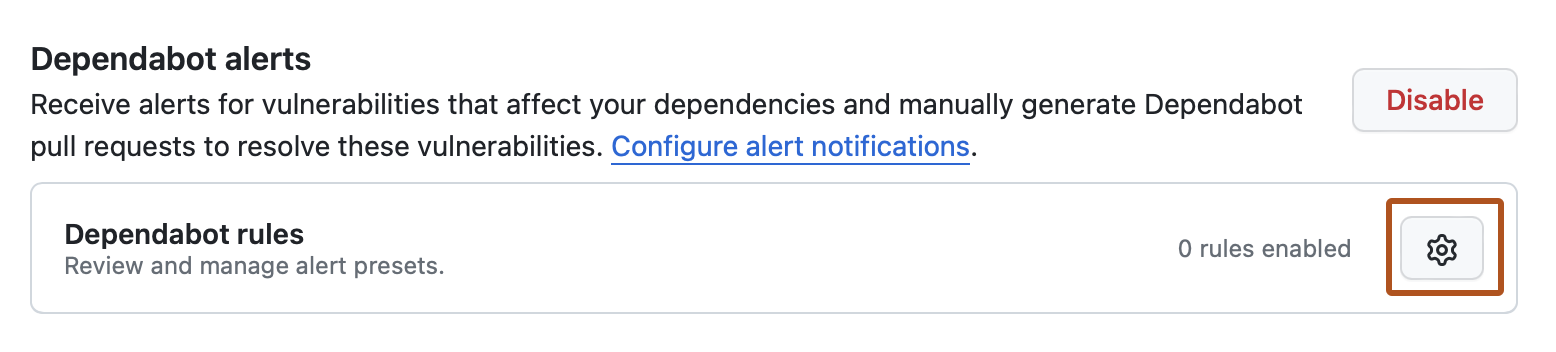
    Screenshot of the "Code security and analysis" page for a repository. The gear icon is highlighted with an orange outline.

  5. In the "GitHub presets" section, to the right of the rule you want to enable, click .

  6. In the "State" section, select the dropdown menu, then click Enabled.

  7. Click Save rule.