Remarque
Votre administrateur de site doit activer l’code scanning avant de pouvoir utiliser cette fonctionnalité. Si vous souhaitez utiliser GitHub Actions pour analyser votre code, l’administrateur de site doit également activer GitHub Actions et configurer l’infrastructure nécessaire. Pour plus d’informations, consultez « Configuration de l’analyse de code pour votre appliance ».
Remarque
Cet article décrit les fonctionnalités disponibles avec la version de l’action CodeQL et le pack CodeQL CLI associé inclus dans la mise en production initiale de cette version de GitHub Enterprise Server. Si votre entreprise utilise une version plus récente de l’action CodeQL, consultez la version GitHub Enterprise Cloud de cet article pour obtenir plus d’informations sur les dernières fonctionnalités. Pour plus d’informations sur l’utilisation de la dernière version, consultez Configuration de l’analyse de code pour votre appliance.
If you do not need a highly customizable code scanning configuration, consider using default setup for code scanning. For more information, see À propos des types d’installation pour l’analyse du code.
Prerequisites
Your repository is eligible for advanced setup if it meets these requirements.
- It uses CodeQL-supported languages or you plan to generate code scanning results with a third-party tool.
- GitHub Actions est activé.
- GitHub Advanced Security est activé.
If the server on which you are running GitHub Enterprise Server is not connected to the internet, your site administrator can enable CodeQL code scanning by making the CodeQL analysis bundle available on the server. For more information, see Configuration de l’analyse de code pour votre appliance.
Configuring advanced setup for code scanning with CodeQL
You can customize your CodeQL analysis by creating and editing a workflow file. Selecting advanced setup generates a basic workflow file for you to customize using standard workflow syntax and specifying options for the CodeQL action. See Flux de travail and Options de configuration de flux de travail pour l’analyse du code.
-
Sur GitHub, accédez à la page principale du référentiel.
-
Sous le nom de votre référentiel, cliquez sur Paramètres. Si vous ne voyez pas l’onglet « Paramètres », sélectionnez le menu déroulant , puis cliquez sur Paramètres.

-
Dans la section « Sécurité » de la barre latérale, cliquez sur Code security and analysis.
-
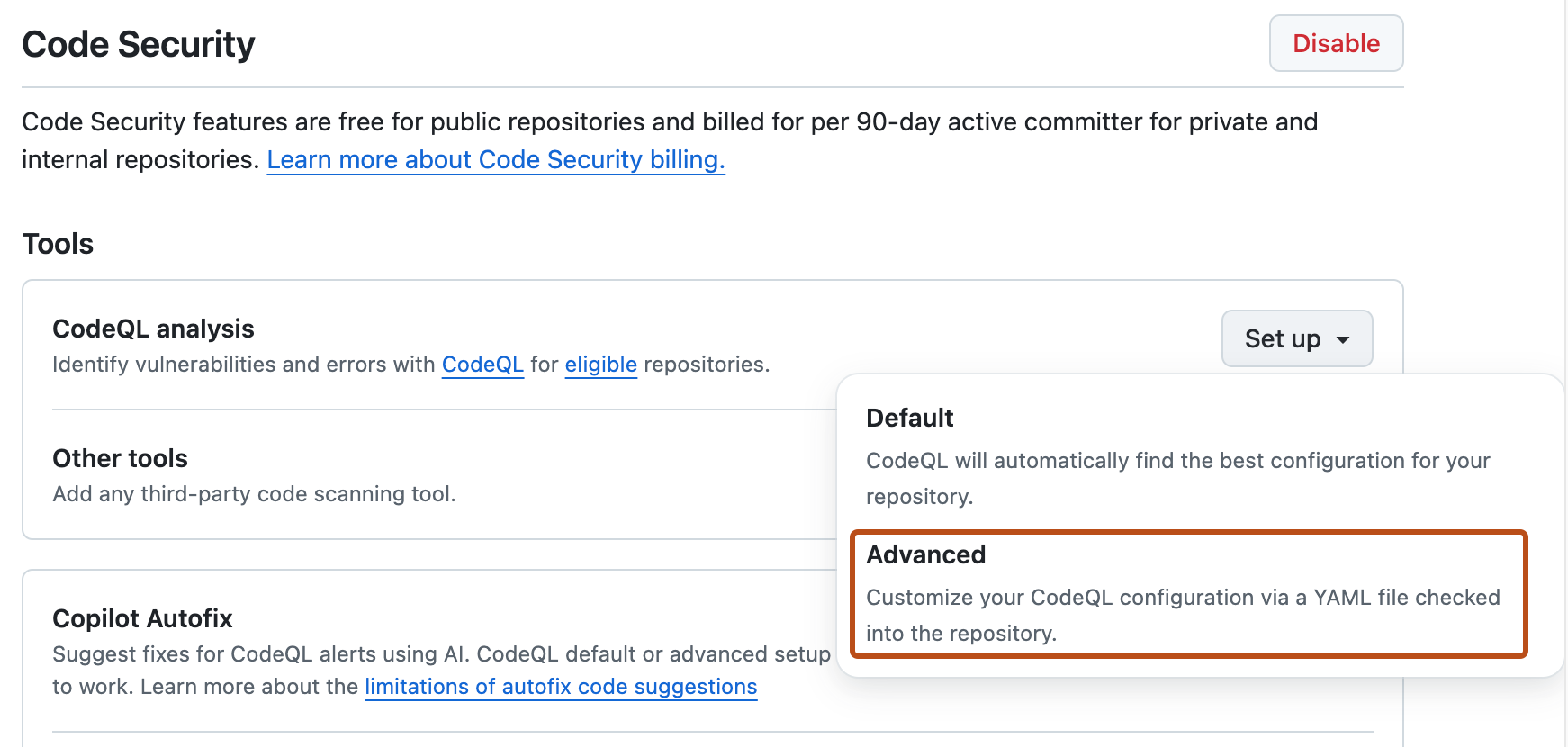
Scroll down to "Code scanning", in the "CodeQL analysis" row select Set up , then click Advanced.
Remarque
If you are switching from default setup to advanced setup, in the "CodeQL analysis" row, select , then click Switch to advanced. In the pop-up window that appears, click Disable CodeQL.
-
To customize how code scanning scans your code, edit the workflow.
Generally, you can commit the Workflow d’analyse CodeQL without making any changes to it. However, many of the third-party workflows require additional configuration, so read the comments in the workflow before committing.
For more information, see Options de configuration de flux de travail pour l’analyse du code and CodeQL code scanning for compiled languages.
-
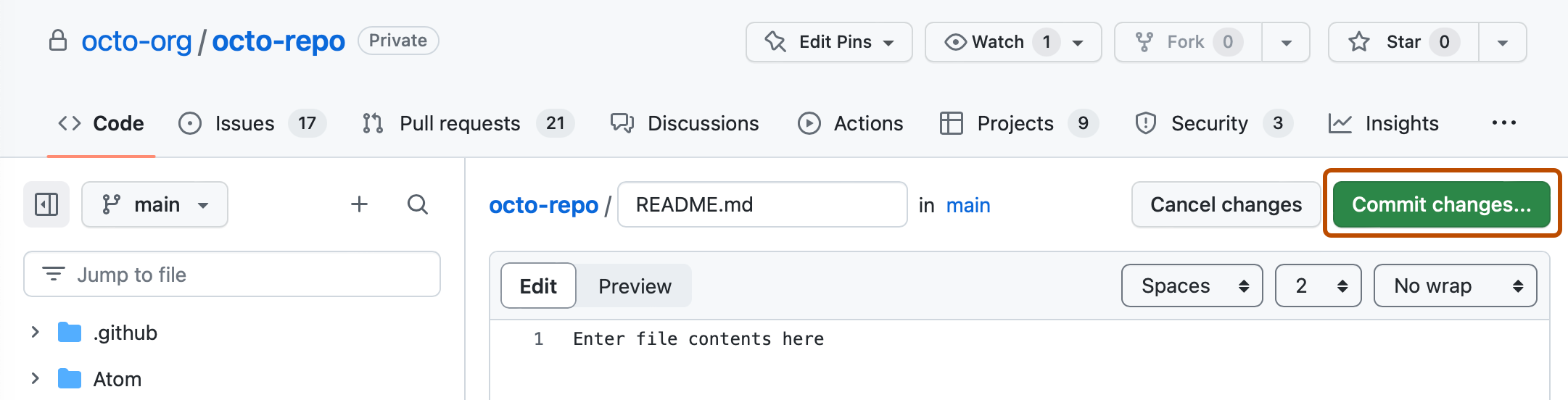
Click Commit changes... to display the commit changes form.
-
In the commit message field, type a commit message.
-
Choose whether you'd like to commit directly to the default branch, or create a new branch and start a pull request.
-
Click Commit new file to commit the workflow file to the default branch or click Propose new file to commit the file to a new branch.
-
If you created a new branch, click Create pull request and open a pull request to merge your change into the default branch.


In the suggested Workflow d’analyse CodeQL, code scanning is configured to analyze your code each time you either push a change to the default branch or any protected branches, or raise a pull request against the default branch. As a result, code scanning will now commence.
The on:pull_request and on:push triggers for code scanning are each useful for different purposes. See Options de configuration de flux de travail pour l’analyse du code and Déclenchement d’un workflow.
For information on bulk enablement, see Définition d’une configuration avancée pour l’analyse de code avec CodeQL à grande échelle.
Next steps
After your workflow runs successfully at least once, you are ready to start examining and resolving code scanning alerts. For more information on code scanning alerts, see À propos des alertes d’analyse du code and Évaluation des alertes d’analyse du code pour votre référentiel.
Learn how code scanning runs behave as checks on pull requests, see Triage des alertes d’analyse du code dans les demandes de tirage (pull request).
You can find detailed information about your code scanning configuration, including timestamps for each scan and the percentage of files scanned, on the tool status page. For more information, see Use the tool status page for code scanning.