この記事のこのバージョンでは、 GitHub Web サイトでリポジトリのカスタム手順を使用します。 他の環境でカスタム指示を使用する方法については、上のタブをクリックします。
イントロダクション
リポジトリ カスタム指示を使うと、Copilot にリポジトリ固有のガイダンスとユーザー設定を提供できます。 詳しくは、「GitHub Copilotの応答をカスタマイズする方法」をご覧ください。
リポジトリ カスタム指示の前提条件
-
カスタム指示ファイルが必要です (後述する手順を参照してください)。
-
Copilotコード レビューでは、カスタム命令を使用するかどうかの個人的な選択を有効に設定する必要があります。 この機能は、既定では有効になっています。 この記事の後半で「[Enabling or disabling repository custom instructions (リポジトリのカスタム指示の有効化または無効化)](#enabling-or-disabling-custom-instructions-for-copilot-code-review)」を参照してください。
カスタム指示の作成
          Copilot
          GitHubでは、3 種類のリポジトリカスタム命令がサポートされます。 これらの種類の手順をサポートする GitHub Copilot 機能の詳細については、 [AUTOTITLE](/copilot/concepts/prompting/response-customization?tool=webui#support-for-repository-custom-instructions) を参照してください。
* リポジトリ全体のカスタム指示。リポジトリのコンテキストで行われたすべてのリクエストに適用されます。
これらは、リポジトリの copilot-instructions.md ディレクトリ内の .github ファイルで指定されます。 「リポジトリ全体のカスタム指示の作成」を参照してください。
-
**パス固有のカスタム指示**。指定したパスに一致するファイルのコンテキストで行われたリクエストに適用されます。これらは、リポジトリ内の
NAME.instructions.mdディレクトリ内または下にある 1 つ以上の.github/instructionsファイルで指定されます。 「Creating path-specific custom instructions (パス固有のカスタム指示の作成)」を参照してください。指定したパスが、 Copilot 作業中のファイルと一致し、リポジトリ全体のカスタム命令ファイルも存在する場合は、両方のファイルの命令が使用されます。
-
**エージェントの指示**は AI エージェントによって使われます。1 つ以上の
AGENTS.mdファイルを作成し、リポジトリ内の任意の場所に格納できます。 Copilotが動作している場合は、ディレクトリ ツリー内の最も近いAGENTS.mdファイルが優先されます。 詳細については、 agentsmd/agents.md リポジトリを参照してください。または、リポジトリのルートに格納された 1 つの
CLAUDE.mdまたはGEMINI.mdファイルを使うこともできます。
リポジトリ全体のカスタム指示の作成
ユーザー独自のカスタム指示ファイルをゼロから作成することもできます。 「Writing your own copilot-instructions.md file (独自の copilot-instructions.md ファイルの作成)」を参照してください。 または、Copilotコーディングエージェントに生成を頼むことができます。
Copilotコーディングエージェント ファイルの生成を`copilot-instructions.md`に要求する
1. github.com/copilot/agents の [エージェント] タブに移動します。
このページには、<svg version="1.1" width="16" height="16" viewBox="0 0 16 16" class="octicon octicon-copilot" aria-label="Copilot icon" role="img"><path d="M7.998 15.035c-4.562 0-7.873-2.914-7.998-3.749V9.338c.085-.628.677-1.686 1.588-2.065.013-.07.024-.143.036-.218.029-.183.06-.384.126-.612-.201-.508-.254-1.084-.254-1.656 0-.87.128-1.769.693-2.484.579-.733 1.494-1.124 2.724-1.261 1.206-.134 2.262.034 2.944.765.05.053.096.108.139.165.044-.057.094-.112.143-.165.682-.731 1.738-.899 2.944-.765 1.23.137 2.145.528 2.724 1.261.566.715.693 1.614.693 2.484 0 .572-.053 1.148-.254 1.656.066.228.098.429.126.612.012.076.024.148.037.218.924.385 1.522 1.471 1.591 2.095v1.872c0 .766-3.351 3.795-8.002 3.795Zm0-1.485c2.28 0 4.584-1.11 5.002-1.433V7.862l-.023-.116c-.49.21-1.075.291-1.727.291-1.146 0-2.059-.327-2.71-.991A3.222 3.222 0 0 1 8 6.303a3.24 3.24 0 0 1-.544.743c-.65.664-1.563.991-2.71.991-.652 0-1.236-.081-1.727-.291l-.023.116v4.255c.419.323 2.722 1.433 5.002 1.433ZM6.762 2.83c-.193-.206-.637-.413-1.682-.297-1.019.113-1.479.404-1.713.7-.247.312-.369.789-.369 1.554 0 .793.129 1.171.308 1.371.162.181.519.379 1.442.379.853 0 1.339-.235 1.638-.54.315-.322.527-.827.617-1.553.117-.935-.037-1.395-.241-1.614Zm4.155-.297c-1.044-.116-1.488.091-1.681.297-.204.219-.359.679-.242 1.614.091.726.303 1.231.618 1.553.299.305.784.54 1.638.54.922 0 1.28-.198 1.442-.379.179-.2.308-.578.308-1.371 0-.765-.123-1.242-.37-1.554-.233-.296-.693-.587-1.713-.7Z"></path><path d="M6.25 9.037a.75.75 0 0 1 .75.75v1.501a.75.75 0 0 1-1.5 0V9.787a.75.75 0 0 1 .75-.75Zm4.25.75v1.501a.75.75 0 0 1-1.5 0V9.787a.75.75 0 0 1 1.5 0Z"></path></svg>の任意のページの検索バーの横にある [GitHub] ボタンをクリックし、サイドバーから **[エージェント]** を選択してアクセスすることもできます。
-
プロンプトフィールドのドロップダウンメニューを使用して、カスタム命令を生成したいリポジトリを選択します Copilot。
-
次のプロンプトをコピーしてプロンプト フィールドに貼り付け、必要に応じてカスタマイズします。
Markdown Your task is to "onboard" this repository to Copilot coding agent by adding a .github/copilot-instructions.md file in the repository that contains information describing how a coding agent seeing it for the first time can work most efficiently. You will do this task only one time per repository and doing a good job can SIGNIFICANTLY improve the quality of the agent's work, so take your time, think carefully, and search thoroughly before writing the instructions. <Goals> - Reduce the likelihood of a coding agent pull request getting rejected by the user due to generating code that fails the continuous integration build, fails a validation pipeline, or having misbehavior. - Minimize bash command and build failures. - Allow the agent to complete its task more quickly by minimizing the need for exploration using grep, find, str_replace_editor, and code search tools. </Goals> <Limitations> - Instructions must be no longer than 2 pages. - Instructions must not be task specific. </Limitations> <WhatToAdd> Add the following high level details about the codebase to reduce the amount of searching the agent has to do to understand the codebase each time: <HighLevelDetails> - A summary of what the repository does. - High level repository information, such as the size of the repo, the type of the project, the languages, frameworks, or target runtimes in use. </HighLevelDetails> Add information about how to build and validate changes so the agent does not need to search and find it each time. <BuildInstructions> - For each of bootstrap, build, test, run, lint, and any other scripted step, document the sequence of steps to take to run it successfully as well as the versions of any runtime or build tools used. - Each command should be validated by running it to ensure that it works correctly as well as any preconditions and postconditions. - Try cleaning the repo and environment and running commands in different orders and document errors and misbehavior observed as well as any steps used to mitigate the problem. - Run the tests and document the order of steps required to run the tests. - Make a change to the codebase. Document any unexpected build issues as well as the workarounds. - Document environment setup steps that seem optional but that you have validated are actually required. - Document the time required for commands that failed due to timing out. - When you find a sequence of commands that work for a particular purpose, document them in detail. - Use language to indicate when something should always be done. For example: "always run npm install before building". - Record any validation steps from documentation. </BuildInstructions> List key facts about the layout and architecture of the codebase to help the agent find where to make changes with minimal searching. <ProjectLayout> - A description of the major architectural elements of the project, including the relative paths to the main project files, the location of configuration files for linting, compilation, testing, and preferences. - A description of the checks run prior to check in, including any GitHub workflows, continuous integration builds, or other validation pipelines. - Document the steps so that the agent can replicate these itself. - Any explicit validation steps that the agent can consider to have further confidence in its changes. - Dependencies that aren't obvious from the layout or file structure. - Finally, fill in any remaining space with detailed lists of the following, in order of priority: the list of files in the repo root, the contents of the README, the contents of any key source files, the list of files in the next level down of directories, giving priority to the more structurally important and snippets of code from key source files, such as the one containing the main method. </ProjectLayout> </WhatToAdd> <StepsToFollow> - Perform a comprehensive inventory of the codebase. Search for and view: - README.md, CONTRIBUTING.md, and all other documentation files. - Search the codebase for build steps and indications of workarounds like 'HACK', 'TODO', etc. - All scripts, particularly those pertaining to build and repo or environment setup. - All build and actions pipelines. - All project files. - All configuration and linting files. - For each file: - think: are the contents or the existence of the file information that the coding agent will need to implement, build, test, validate, or demo a code change? - If yes: - Document the command or information in detail. - Explicitly indicate which commands work and which do not and the order in which commands should be run. - Document any errors encountered as well as the steps taken to workaround them. - Document any other steps or information that the agent can use to reduce time spent exploring or trying and failing to run bash commands. - Finally, explicitly instruct the agent to trust the instructions and only perform a search if the information in the instructions is incomplete or found to be in error. </StepsToFollow> - Document any errors encountered as well as the steps taken to work-around them.
Your task is to "onboard" this repository to Copilot coding agent by adding a .github/copilot-instructions.md file in the repository that contains information describing how a coding agent seeing it for the first time can work most efficiently. You will do this task only one time per repository and doing a good job can SIGNIFICANTLY improve the quality of the agent's work, so take your time, think carefully, and search thoroughly before writing the instructions. <Goals> - Reduce the likelihood of a coding agent pull request getting rejected by the user due to generating code that fails the continuous integration build, fails a validation pipeline, or having misbehavior. - Minimize bash command and build failures. - Allow the agent to complete its task more quickly by minimizing the need for exploration using grep, find, str_replace_editor, and code search tools. </Goals> <Limitations> - Instructions must be no longer than 2 pages. - Instructions must not be task specific. </Limitations> <WhatToAdd> Add the following high level details about the codebase to reduce the amount of searching the agent has to do to understand the codebase each time: <HighLevelDetails> - A summary of what the repository does. - High level repository information, such as the size of the repo, the type of the project, the languages, frameworks, or target runtimes in use. </HighLevelDetails> Add information about how to build and validate changes so the agent does not need to search and find it each time. <BuildInstructions> - For each of bootstrap, build, test, run, lint, and any other scripted step, document the sequence of steps to take to run it successfully as well as the versions of any runtime or build tools used. - Each command should be validated by running it to ensure that it works correctly as well as any preconditions and postconditions. - Try cleaning the repo and environment and running commands in different orders and document errors and misbehavior observed as well as any steps used to mitigate the problem. - Run the tests and document the order of steps required to run the tests. - Make a change to the codebase. Document any unexpected build issues as well as the workarounds. - Document environment setup steps that seem optional but that you have validated are actually required. - Document the time required for commands that failed due to timing out. - When you find a sequence of commands that work for a particular purpose, document them in detail. - Use language to indicate when something should always be done. For example: "always run npm install before building". - Record any validation steps from documentation. </BuildInstructions> List key facts about the layout and architecture of the codebase to help the agent find where to make changes with minimal searching. <ProjectLayout> - A description of the major architectural elements of the project, including the relative paths to the main project files, the location of configuration files for linting, compilation, testing, and preferences. - A description of the checks run prior to check in, including any GitHub workflows, continuous integration builds, or other validation pipelines. - Document the steps so that the agent can replicate these itself. - Any explicit validation steps that the agent can consider to have further confidence in its changes. - Dependencies that aren't obvious from the layout or file structure. - Finally, fill in any remaining space with detailed lists of the following, in order of priority: the list of files in the repo root, the contents of the README, the contents of any key source files, the list of files in the next level down of directories, giving priority to the more structurally important and snippets of code from key source files, such as the one containing the main method. </ProjectLayout> </WhatToAdd> <StepsToFollow> - Perform a comprehensive inventory of the codebase. Search for and view: - README.md, CONTRIBUTING.md, and all other documentation files. - Search the codebase for build steps and indications of workarounds like 'HACK', 'TODO', etc. - All scripts, particularly those pertaining to build and repo or environment setup. - All build and actions pipelines. - All project files. - All configuration and linting files. - For each file: - think: are the contents or the existence of the file information that the coding agent will need to implement, build, test, validate, or demo a code change? - If yes: - Document the command or information in detail. - Explicitly indicate which commands work and which do not and the order in which commands should be run. - Document any errors encountered as well as the steps taken to workaround them. - Document any other steps or information that the agent can use to reduce time spent exploring or trying and failing to run bash commands. - Finally, explicitly instruct the agent to trust the instructions and only perform a search if the information in the instructions is incomplete or found to be in error. </StepsToFollow> - Document any errors encountered as well as the steps taken to work-around them. -
Click or press Enter.
Copilot will start a new session, which will appear in the list below the prompt box. Copilot will create a draft pull request, write your custom instructions, push them to the branch, then add you as a reviewer when it has finished, triggering a notification.
Writing your own copilot-instructions.md file
-
In the root of your repository, create a file named
.github/copilot-instructions.md.Create the
.githubdirectory if it does not already exist. -
Add natural language instructions to the file, in Markdown format.
Whitespace between instructions is ignored, so the instructions can be written as a single paragraph, each on a new line, or separated by blank lines for legibility.
ヒント
The first time you create a pull request in a given repository with Copilotコーディングエージェント, Copilot will leave a comment with a link to automatically generate custom instructions for the repository.
Creating path-specific custom instructions
メモ
Currently, on GitHub.com, path-specific custom instructions are only supported for Copilotコーディングエージェント and Copilotコード レビュー.
-
`.github/instructions` ディレクトリがまだ存在しない場合は作成します。 -
必要に応じて、
.github/instructionsのサブディレクトリを作成して命令ファイルを整理します。 -
1 つ以上の
NAME.instructions.mdファイルを作成します。ここで、NAMEは指示の目的を示します。 ファイル名は.instructions.mdで終わる必要があります。 -
ファイルの先頭に、
applyToキーワードを含む frontmatter ブロックを作成します。 glob 構文を使用して、指示が適用されるファイルまたはディレクトリを指定します。次に例を示します。
---
applyTo: "app/models/**/*.rb"
---
複数のパターンをコンマで区切って指定できます。 たとえば、リポジトリ内のすべての TypeScript ファイルに指示を適用するには、次の frontmatter ブロックを使用できます。
---
applyTo: "**/*.ts,**/*.tsx"
---
Glob の例:
-
`*` - 現在のディレクトリ内のすべてのファイルと一致します。 -
`**` または `**/*` - すべてのディレクトリ内のすべてのファイルと一致します。 -
`*.py` - 現在のディレクトリ内のすべての `.py` ファイルと一致します。 -
`**/*.py` - すべてのディレクトリ内のすべての `.py` ファイルと再帰的に一致します。 -
`src/*.py`- `.py` ディレクトリ内のすべての`src` ファイルと一致します。 たとえば、`src/foo.py`と`src/bar.py`しかし_ではない_`src/foo/bar.py`。 -
`src/**/*.py`- `.py` ディレクトリ内のすべての`src` ファイルと再帰的に一致します。 たとえば、 `src/foo.py`、 `src/foo/bar.py`、 `src/foo/bar/baz.py`などです。 -
`**/subdir/**/*.py`- 任意の`.py` ディレクトリ内のすべての`subdir` ファイルを任意の深さで再帰的に照合します。 たとえば、`subdir/foo.py`、`subdir/nested/bar.py`、`parent/subdir/baz.py`、`deep/parent/subdir/nested/qux.py` は使用できますが、__ ディレクトリを含まないパスでは`foo.py``subdir`。
-
-
必要に応じて、ファイルが Copilotコーディングエージェント または Copilotコード レビューによって使用されないようにするには、frontmatter ブロックに
excludeAgentキーワードを追加します。"code-review"または"coding-agent"を使用します。たとえば、次のファイルは Copilotコーディングエージェントによってのみ読み取られます。
---
applyTo: "**"
excludeAgent: "code-review"
---
`excludeAgent` キーワードが front matterblock に含まれていない場合は、Copilotコード レビューとCopilotコーディングエージェントの両方で指示が使用されます。 -
Markdown 形式を使い、自然言語でカスタム指示を追加します。 指示と指示の間の空白は無視されます。このため複数の指示を 1 段落に記述することも、1 行に 1 つずつ記述することもできます。あるいは、読みやすくするために空白行で区切ることもできます。
カスタム指示ファイルをリポジトリにうまく追加できましたか?
          <a href="https://docs.github.io/success-test/yes.html" target="_blank" class="btn btn-outline mt-3 mr-3 no-underline">
          <span>はい</span></a><a href="https://docs.github.io/success-test/no.html" target="_blank" class="btn btn-outline mt-3 mr-3 no-underline"><span>いいえ</span></a>
使用中のカスタム手順
ファイル内の手順は、ファイルを保存するとすぐに Copilot で使用できます。 手順は、 Copilotに送信した要求に自動的に追加されます。
In Copilot チャット (github.com/copilot), you can start a conversation that uses repository custom instructions by adding, as an attachment, the repository that contains the instructions file.
Whenever repository custom instructions are used by Copilot チャット, the instructions file is added as a reference for the response that's generated. To find out whether repository custom instructions were used, expand the list of references at the top of a chat response in the Chat panel and check whether the .github/copilot-instructions.md file is listed.

You can click the reference to open the file.
メモ
- Copilot に送信された要求には、複数の種類のカスタム命令を適用できます。 個人の指示が最も優先されます。 リポジトリの指示が次に来ると、組織の指示が最後に優先されます。 ただし、関連するすべての指示は、Copilot に提供されます。
- 可能な限り、競合する一組の命令を提供しないようにしてください。 応答の品質が気になる場合は、リポジトリの指示を一時的に無効にすることができます。 「GitHub Copilot用のリポジトリカスタム命令の追加」をご覧ください。
Enabling or disabling custom instructions for Copilotコード レビュー
Custom instructions are enabled for Copilotコード レビュー by default but you can disable, or re-enable, them in the repository settings on GitHub.com. This applies to Copilot's use of custom instructions for all code reviews it performs in this repository.
-
GitHub で、リポジトリのメイン ページに移動します。
-
リポジトリ名の下にある [Settings] をクリックします。 [設定] タブが表示されない場合は、 [] ドロップダウン メニューを選び、 [設定] をクリックします。
![タブを示すリポジトリ ヘッダーのスクリーンショット。 [設定] タブが濃いオレンジ色の枠線で強調表示されています。](/assets/cb-28260/images/help/repository/repo-actions-settings.png)
-
In the "Code & automation" section of the sidebar, click Copilot, then Code review.
-
Toggle the “Use custom instructions when reviewing pull requests” option on or off.
![タブを示すリポジトリ ヘッダーのスクリーンショット。 [設定] タブが濃いオレンジ色の枠線で強調表示されています。](/assets/cb-28260/mw-1440/images/help/repository/repo-actions-settings.webp)
メモ
プルリクエストを確認する場合、Copilot は、プルリクエストのベースブランチにあるカスタム命令を使用します。 たとえば、pull request が my-feature-branch を mainにマージしようとすると、Copilot は mainのカスタム命令を使用します。
Further reading
- さまざまな種類のカスタム命令のサポート
- カスタム指示—a curated collection of examples
- カスタム指示を使用してCopilotのコードレビュー機能を解除する
This version of this article is for using repository custom instructions and prompt files in VS Code. Click the tabs above for instructions on using custom instructions in other environments.
イントロダクション
リポジトリ カスタム指示を使うと、Copilot にリポジトリ固有のガイダンスとユーザー設定を提供できます。 詳しくは、「GitHub Copilotの応答をカスタマイズする方法」をご覧ください。
リポジトリ カスタム指示の前提条件
-
カスタム指示ファイルが必要です (後述する手順を参照してください)。
-
Custom instructions must be enabled. This feature is enabled by default. See Enabling or disabling repository custom instructions later in this article.
Creating custom instructions
VS Code supports three types of repository custom instructions. For details of which GitHub Copilot features support these types of instructions, see GitHub Copilotの応答をカスタマイズする方法.
-
Repository-wide custom instructions, which apply to all requests made in the context of a repository.
These are specified in a
copilot-instructions.mdfile in the.githubdirectory of the repository. See Creating repository-wide custom instructions. -
Path-specific custom instructions, which apply to requests made in the context of files that match a specified path.
These are specified in one or more
NAME.instructions.mdfiles within or below the.github/instructionsdirectory in the repository. See Creating path-specific custom instructions.If the path you specify matches a file that Copilot is working on, and a repository-wide custom instructions file also exists, then the instructions from both files are used.
-
Agent instructions are used by AI agents.
1 つ以上の
AGENTS.mdファイルを作成し、リポジトリ内の任意の場所に格納できます。 Copilotが動作している場合は、ディレクトリ ツリー内の最も近いAGENTS.mdファイルが優先されます。 詳細については、 agentsmd/agents.md リポジトリを参照してください。メモ
Support of
AGENTS.mdfiles outside of the workspace root is currently turned off by default. For details of how to enable this feature, see Use custom instructions in VS Code in the VS Code documentation.
Creating repository-wide custom instructions
-
In the root of your repository, create a file named
.github/copilot-instructions.md.Create the
.githubdirectory if it does not already exist. -
Add natural language instructions to the file, in Markdown format.
Whitespace between instructions is ignored, so the instructions can be written as a single paragraph, each on a new line, or separated by blank lines for legibility.
Creating path-specific custom instructions
-
`.github/instructions` ディレクトリがまだ存在しない場合は作成します。 -
必要に応じて、
.github/instructionsのサブディレクトリを作成して命令ファイルを整理します。 -
1 つ以上の
NAME.instructions.mdファイルを作成します。ここで、NAMEは指示の目的を示します。 ファイル名は.instructions.mdで終わる必要があります。 -
ファイルの先頭に、
applyToキーワードを含む frontmatter ブロックを作成します。 glob 構文を使用して、指示が適用されるファイルまたはディレクトリを指定します。次に例を示します。
---
applyTo: "app/models/**/*.rb"
---
複数のパターンをコンマで区切って指定できます。 たとえば、リポジトリ内のすべての TypeScript ファイルに指示を適用するには、次の frontmatter ブロックを使用できます。
---
applyTo: "**/*.ts,**/*.tsx"
---
Glob の例:
-
`*` - 現在のディレクトリ内のすべてのファイルと一致します。 -
`**` または `**/*` - すべてのディレクトリ内のすべてのファイルと一致します。 -
`*.py` - 現在のディレクトリ内のすべての `.py` ファイルと一致します。 -
`**/*.py` - すべてのディレクトリ内のすべての `.py` ファイルと再帰的に一致します。 -
`src/*.py`- `.py` ディレクトリ内のすべての`src` ファイルと一致します。 たとえば、`src/foo.py`と`src/bar.py`しかし_ではない_`src/foo/bar.py`。 -
`src/**/*.py`- `.py` ディレクトリ内のすべての`src` ファイルと再帰的に一致します。 たとえば、 `src/foo.py`、 `src/foo/bar.py`、 `src/foo/bar/baz.py`などです。 -
`**/subdir/**/*.py`- 任意の`.py` ディレクトリ内のすべての`subdir` ファイルを任意の深さで再帰的に照合します。 たとえば、`subdir/foo.py`、`subdir/nested/bar.py`、`parent/subdir/baz.py`、`deep/parent/subdir/nested/qux.py` は使用できますが、__ ディレクトリを含まないパスでは`foo.py``subdir`。
-
-
必要に応じて、ファイルが Copilotコーディングエージェント または Copilotコード レビューによって使用されないようにするには、frontmatter ブロックに
excludeAgentキーワードを追加します。"code-review"または"coding-agent"を使用します。たとえば、次のファイルは Copilotコーディングエージェントによってのみ読み取られます。
---
applyTo: "**"
excludeAgent: "code-review"
---
`excludeAgent` キーワードが front matterblock に含まれていない場合は、Copilotコード レビューとCopilotコーディングエージェントの両方で指示が使用されます。 -
Markdown 形式を使い、自然言語でカスタム指示を追加します。 指示と指示の間の空白は無視されます。このため複数の指示を 1 段落に記述することも、1 行に 1 つずつ記述することもできます。あるいは、読みやすくするために空白行で区切ることもできます。
カスタム指示ファイルをリポジトリにうまく追加できましたか?
          <a href="https://docs.github.io/success-test/yes.html" target="_blank" class="btn btn-outline mt-3 mr-3 no-underline">
          <span>はい</span></a><a href="https://docs.github.io/success-test/no.html" target="_blank" class="btn btn-outline mt-3 mr-3 no-underline"><span>いいえ</span></a>
使用中のカスタム手順
ファイル内の手順は、ファイルを保存するとすぐに Copilot で使用できます。 手順は、 Copilotに送信した要求に自動的に追加されます。
カスタム指示はチャット ビューやインライン チャットには表示されませんが、チャット ビューで応答の参照リストを確認することで、それらが Copilot によって使われていることを確認できます。 モデルに送信されたプロンプトにカスタム指示が追加されると、.github/copilot-instructions.md ファイルが参照として一覧表示されます。 参照をクリックしてファイルを開くことができます。

リポジトリのカスタム命令の有効化または無効化
Copilot でリポジトリベースのカスタム指示を使うかどうかを選択できます。
Copilot チャット のカスタム指示を有効または無効にする
カスタム指示は、Copilot チャット に対して既定で有効になっていますが、いつでも無効にしたり、再度有効にしたりすることができます。 これは、Copilot チャット の個人の使用に適用され、他のユーザーには影響しません。
- Open the Setting editor by using the keyboard shortcut Command+, (Mac) / Ctrl+, (Linux/Windows).
- Type
instruction filein the search box. - Select or clear the checkbox under Code Generation: Use Instruction Files.
Copilotコード レビュー のカスタム指示を有効または無効にする
カスタム指示は、既定で Copilotコード レビュー に対して有効になっていますが、GitHub.com のリポジトリ設定で無効にしたり、再度有効にしたりすることができます。 これは、このリポジトリで実行されるすべてのコード レビューに対する Copilot のカスタム指示の使用に適用されます。
-
GitHub で、リポジトリのメイン ページに移動します。
-
リポジトリ名の下にある [Settings] をクリックします。 [設定] タブが表示されない場合は、 [] ドロップダウン メニューを選び、 [設定] をクリックします。
-
サイドバーの [Code & automation] セクションで、 [Copilot]、[Code review] の順にクリックします。
-
[Use custom instructions when reviewing pull requests] オプションをオンまたはオフに切り替えます。
Enabling and using prompt files
メモ
- Copilot プロンプト ファイルは パブリック プレビュー 段階であり、変更される可能性があります。 プロンプト ファイルは、VS Code、Visual Studio、および JetBrains IDE でのみ使用できます。「GitHub Copilotの応答をカスタマイズする方法」を参照してください。
- 特定の言語とシナリオ向けの、コミュニティに投稿されたプロンプト ファイルの例については、Awesome GitHub Copilot Customizations リポジトリを参照してください。
Prompt files let you build and share reusable prompt instructions with additional context. A prompt file is a Markdown file, stored in your workspace, that mimics the existing format of writing prompts in Copilot チャット (for example, Rewrite #file:x.ts). You can have multiple prompt files in your workspace, each of which defines a prompt for a different purpose.
Enabling prompt files
To enable prompt files, configure the workspace settings.
- Open the command palette by pressing Ctrl+Shift+P (Windows/Linux) / Command+Shift+P (Mac).
- Type "Open Workspace Settings (JSON)" and select the option that's displayed.
- In the
settings.jsonfile, add"chat.promptFiles": trueto enable the.github/promptsfolder as the location for prompt files. This folder will be created if it does not already exist.
Creating prompt files
-
Open the command palette by pressing Ctrl+Shift+P (Windows/Linux) / Command+Shift+P (Mac).
-
Type "prompt" and select Chat: Create Prompt.
-
Enter a name for the prompt file, excluding the
.prompt.mdfile name extension. The name can contain alphanumeric characters and spaces and should describe the purpose of the prompt information the file will contain. -
Write the prompt instructions, using Markdown formatting.
You can reference other files in the workspace by using Markdown links—for example,
[index](../../web/index.ts)—or by using the#file:../../web/index.tssyntax. Paths are relative to the prompt file. Referencing other files allows you to provide additional context, such as API specifications or product documentation.
Using prompt files
-
At the bottom of the Copilot チャット view, click the Attach context icon ().
-
In the dropdown menu, click Prompt... and choose the prompt file you want to use.
-
Optionally, attach additional files, including prompt files, to provide more context.
-
Optionally, type additional information in the chat prompt box.
Whether you need to do this or not depends on the contents of the prompt you are using.
-
Submit the chat prompt.
For more information about prompt files, see Use prompt files in Visual Studio Code in the Visual Studio Code documentation.
Further reading
- さまざまな種類のカスタム命令のサポート
- カスタマイズ ライブラリ—a curated collection of examples
- カスタム指示を使用してCopilotのコードレビュー機能を解除する
This version of this article is for using repository custom instructions and prompt files in Visual Studio. Click the tabs above for instructions on using custom instructions in other environments.
イントロダクション
リポジトリ カスタム指示を使うと、Copilot にリポジトリ固有のガイダンスとユーザー設定を提供できます。 詳しくは、「GitHub Copilotの応答をカスタマイズする方法」をご覧ください。
リポジトリ カスタム指示の前提条件
-
カスタム指示ファイルが必要です (後述する手順を参照してください)。
-
The Enable custom instructions... option must be enabled in your settings. This is enabled by default. See Enabling or disabling repository custom instructions later in this article.
Creating custom instructions
Visual Studio supports two types of custom instructions. For details of which GitHub Copilot features support these types of instructions, see GitHub Copilotの応答をカスタマイズする方法.
-
Repository-wide custom instructions, which apply to all requests made in the context of a repository.
These are specified in a
copilot-instructions.mdfile in the.githubdirectory of the repository. See Creating repository-wide custom instructions. -
Path-specific custom instructions, which apply to requests made in the context of files that match a specified path.
These are specified in one or more
NAME.instructions.mdfiles within or below the.github/instructionsdirectory in the repository. See Creating path-specific custom instructions.If the path you specify matches a file that Copilot is working on, and a repository-wide custom instructions file also exists, then the instructions from both files are used.
Creating repository-wide custom instructions
-
In the root of your repository, create a file named
.github/copilot-instructions.md.Create the
.githubdirectory if it does not already exist. -
Add natural language instructions to the file, in Markdown format.
Whitespace between instructions is ignored, so the instructions can be written as a single paragraph, each on a new line, or separated by blank lines for legibility.
Creating path-specific custom instructions
-
`.github/instructions` ディレクトリがまだ存在しない場合は作成します。 -
必要に応じて、
.github/instructionsのサブディレクトリを作成して命令ファイルを整理します。 -
1 つ以上の
NAME.instructions.mdファイルを作成します。ここで、NAMEは指示の目的を示します。 ファイル名は.instructions.mdで終わる必要があります。 -
ファイルの先頭に、
applyToキーワードを含む frontmatter ブロックを作成します。 glob 構文を使用して、指示が適用されるファイルまたはディレクトリを指定します。次に例を示します。
---
applyTo: "app/models/**/*.rb"
---
複数のパターンをコンマで区切って指定できます。 たとえば、リポジトリ内のすべての TypeScript ファイルに指示を適用するには、次の frontmatter ブロックを使用できます。
---
applyTo: "**/*.ts,**/*.tsx"
---
Glob の例:
-
`*` - 現在のディレクトリ内のすべてのファイルと一致します。 -
`**` または `**/*` - すべてのディレクトリ内のすべてのファイルと一致します。 -
`*.py` - 現在のディレクトリ内のすべての `.py` ファイルと一致します。 -
`**/*.py` - すべてのディレクトリ内のすべての `.py` ファイルと再帰的に一致します。 -
`src/*.py`- `.py` ディレクトリ内のすべての`src` ファイルと一致します。 たとえば、`src/foo.py`と`src/bar.py`しかし_ではない_`src/foo/bar.py`。 -
`src/**/*.py`- `.py` ディレクトリ内のすべての`src` ファイルと再帰的に一致します。 たとえば、 `src/foo.py`、 `src/foo/bar.py`、 `src/foo/bar/baz.py`などです。 -
`**/subdir/**/*.py`- 任意の`.py` ディレクトリ内のすべての`subdir` ファイルを任意の深さで再帰的に照合します。 たとえば、`subdir/foo.py`、`subdir/nested/bar.py`、`parent/subdir/baz.py`、`deep/parent/subdir/nested/qux.py` は使用できますが、__ ディレクトリを含まないパスでは`foo.py``subdir`。
-
-
必要に応じて、ファイルが Copilotコーディングエージェント または Copilotコード レビューによって使用されないようにするには、frontmatter ブロックに
excludeAgentキーワードを追加します。"code-review"または"coding-agent"を使用します。たとえば、次のファイルは Copilotコーディングエージェントによってのみ読み取られます。
---
applyTo: "**"
excludeAgent: "code-review"
---
`excludeAgent` キーワードが front matterblock に含まれていない場合は、Copilotコード レビューとCopilotコーディングエージェントの両方で指示が使用されます。 -
Markdown 形式を使い、自然言語でカスタム指示を追加します。 指示と指示の間の空白は無視されます。このため複数の指示を 1 段落に記述することも、1 行に 1 つずつ記述することもできます。あるいは、読みやすくするために空白行で区切ることもできます。
カスタム指示ファイルをリポジトリにうまく追加できましたか?
          <a href="https://docs.github.io/success-test/yes.html" target="_blank" class="btn btn-outline mt-3 mr-3 no-underline">
          <span>はい</span></a><a href="https://docs.github.io/success-test/no.html" target="_blank" class="btn btn-outline mt-3 mr-3 no-underline"><span>いいえ</span></a>
使用中のカスタム手順
ファイル内の手順は、ファイルを保存するとすぐに Copilot で使用できます。 手順は、 Copilotに送信した要求に自動的に追加されます。
カスタム指示はチャット ビューやインライン チャットには表示されませんが、チャット ビューで応答の参照リストを確認することで、それらが Copilot によって使われていることを確認できます。 モデルに送信されたプロンプトにカスタム指示が追加されると、.github/copilot-instructions.md ファイルが参照として一覧表示されます。 参照をクリックしてファイルを開くことができます。

リポジトリのカスタム命令の有効化または無効化
Copilot でリポジトリベースのカスタム指示を使うかどうかを選択できます。
Copilot チャット のカスタム指示を有効または無効にする
カスタム指示は、Copilot チャット に対して既定で有効になっていますが、いつでも無効にしたり、再度有効にしたりすることができます。 これは、Copilot チャット の個人の使用に適用され、他のユーザーには影響しません。
-
In the Visual Studio menu bar, under Tools, click Options.
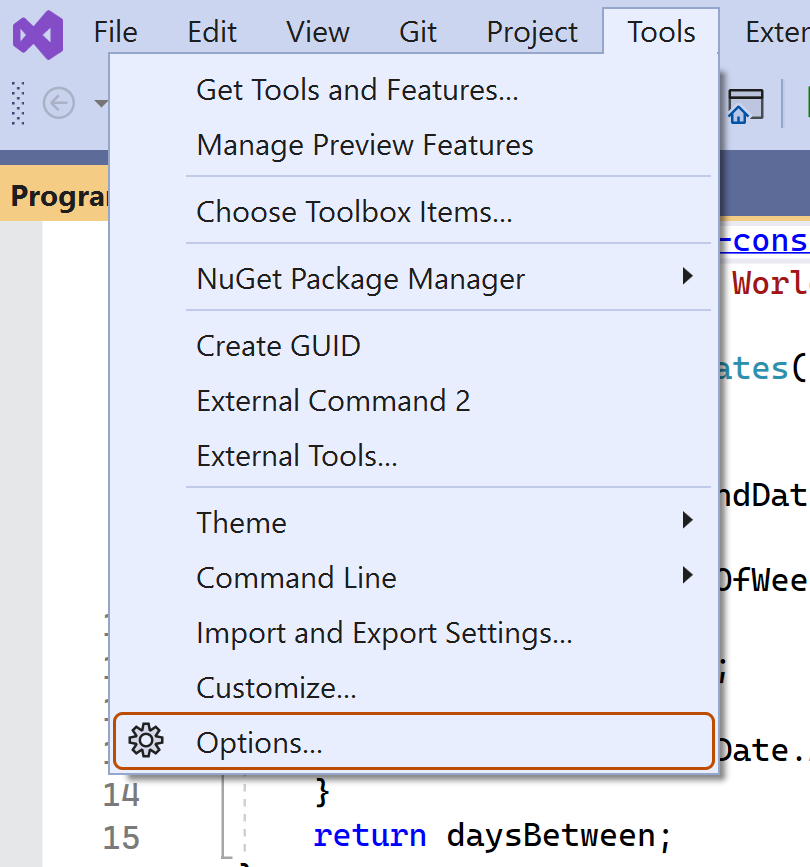
-
In the "Options" dialog, type
custom instructionsin the search box, then click Copilot. -
Select or clear the checkbox for Enable custom instructions to be loaded from .github/copilot-instructions.md files and added to requests.
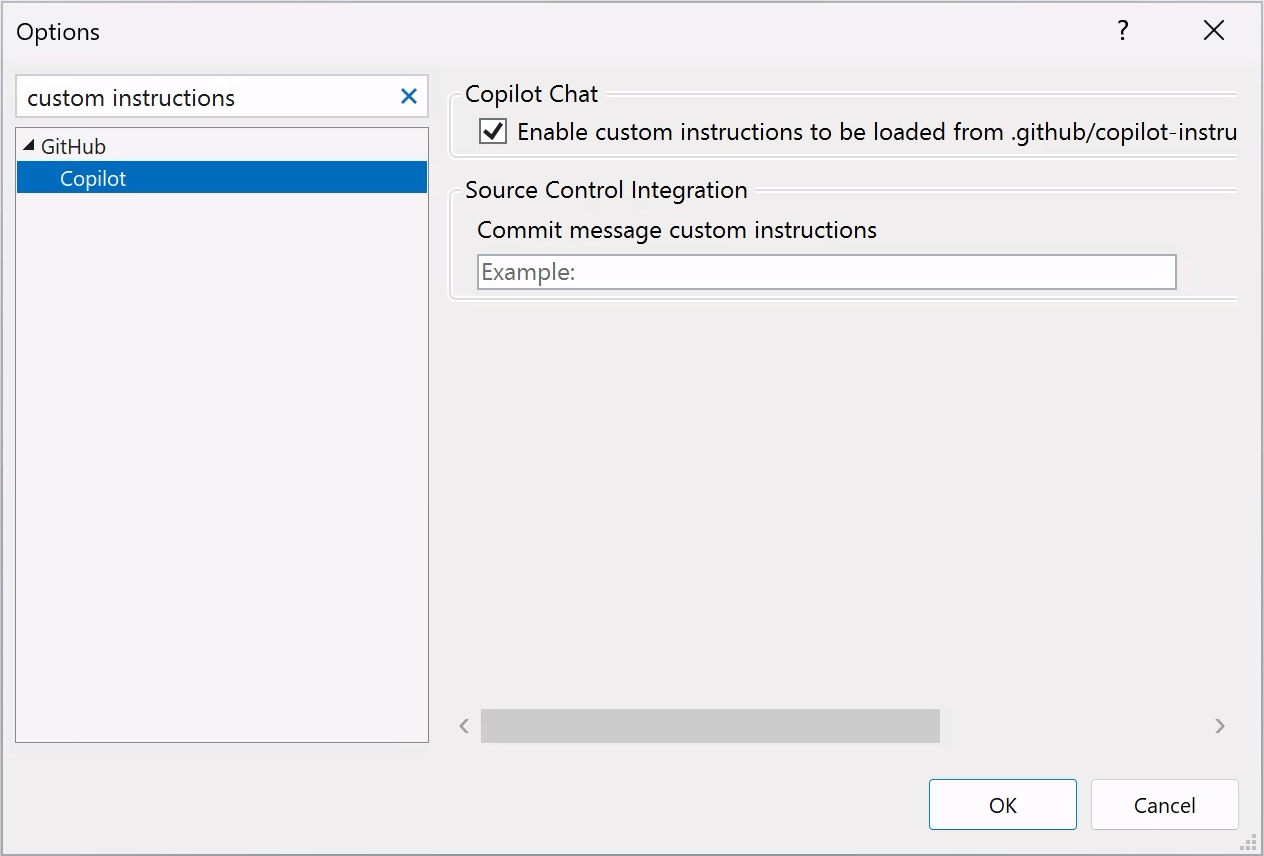


Copilotコード レビュー のカスタム指示を有効または無効にする
カスタム指示は、既定で Copilotコード レビュー に対して有効になっていますが、GitHub.com のリポジトリ設定で無効にしたり、再度有効にしたりすることができます。 これは、このリポジトリで実行されるすべてのコード レビューに対する Copilot のカスタム指示の使用に適用されます。
-
GitHub で、リポジトリのメイン ページに移動します。
-
リポジトリ名の下にある [Settings] をクリックします。 [設定] タブが表示されない場合は、 [] ドロップダウン メニューを選び、 [設定] をクリックします。
-
サイドバーの [Code & automation] セクションで、 [Copilot]、[Code review] の順にクリックします。
-
[Use custom instructions when reviewing pull requests] オプションをオンまたはオフに切り替えます。
Using prompt files
メモ
- Copilot プロンプト ファイルは パブリック プレビュー 段階であり、変更される可能性があります。 プロンプト ファイルは、VS Code、Visual Studio、および JetBrains IDE でのみ使用できます。「GitHub Copilotの応答をカスタマイズする方法」を参照してください。
- 特定の言語とシナリオ向けの、コミュニティに投稿されたプロンプト ファイルの例については、Awesome GitHub Copilot Customizations リポジトリを参照してください。
Prompt files let you build and share reusable prompt instructions with additional context. A prompt file is a Markdown file, stored in your workspace, that mimics the existing format of writing prompts in Copilot チャット (for example, Rewrite #file:x.ts). You can have multiple prompt files in your workspace, each of which defines a prompt for a different purpose.
Creating prompt files
-
Add a prompt file, including the
.prompt.mdfile name extension inside the.github/promptsfolder in the root of the repository. The name can contain alphanumeric characters and spaces and should describe the purpose of the prompt information the file will contain. -
Write the prompt instructions, using Markdown formatting.
You can reference other files in the workspace by using Markdown links—for example,
[index](../../web/index.ts)—or by using the#file:'../../web/index.ts'syntax. Paths are relative to the prompt file. Referencing other files allows you to provide additional context, such as API specifications or product documentation.
For more information about prompt files, see Use prompt files in Visual Studio in the Visual Studio documentation.
Further reading
- さまざまな種類のカスタム命令のサポート
- カスタマイズ ライブラリ—a curated collection of examples
- カスタム指示を使用してCopilotのコードレビュー機能を解除する
This version of this article is for using repository custom instructions in JetBrains IDEs. Click the tabs above for instructions on using custom instructions in other environments.
イントロダクション
リポジトリ カスタム指示を使うと、Copilot にリポジトリ固有のガイダンスとユーザー設定を提供できます。 詳しくは、「GitHub Copilotの応答をカスタマイズする方法」をご覧ください。
リポジトリ カスタム指示の前提条件
-
カスタム指示ファイルが必要です (後述する手順を参照してください)。
-
The latest version of the Copilot extension must be installed in your JetBrains IDE.
Creating custom instructions
JetBrains IDEs support a single .github/copilot-instructions.md custom instructions file stored in the repository, and a locally stored global-copilot-instructions.md file.
You can create the .github/copilot-instructions.md file in your repository using the Copilot settings page, or you can create the file manually.
Whitespace between instructions is ignored, so the instructions can be written as a single paragraph, each on a new line, or separated by blank lines for legibility.
Using the settings page
- JetBrains IDE で、ファイル メニュー (Windows) またはメニュー バー (macOS) のアプリケーションの名前をクリックし、設定 をクリックします。
- 左側のサイドバーで[ツール]をクリックし、[GitHub Copilot]をクリックします。, then click Customizations.
- Under "Copilot Instructions", click Workspace or Global to choose whether the custom instructions apply to the current workspace or all workspaces.
Manually creating a workspace custom instructions file
-
In the root of your repository, create a file named
.github/copilot-instructions.md.Create the
.githubdirectory if it does not already exist. -
Add natural language instructions to the file, in Markdown format.
Once saved, these instructions will apply to the current workspace in JetBrains IDEs that you open with Copilot enabled.
Manually creating a global custom instructions file
To apply the same instructions across all workspaces in JetBrains IDEs, you can create a global custom instructions file on your local machine.
-
Open your file explorer or terminal.
-
Navigate to the appropriate location for your operating system:
- macOS:
/Users/YOUR-USERNAME/.config/github-copilot/intellij/ - Windows:
C:\Users\YOUR-USERNAME\AppData\Local\github-copilot\intellij\
- macOS:
-
Create a file named
global-copilot-instructions.mdin that directory. -
Add your custom instructions in natural language, using Markdown format.
Once saved, these instructions will apply globally across all workspaces in JetBrains IDEs that you open with Copilot enabled.
カスタム指示ファイルをリポジトリにうまく追加できましたか?
          <a href="https://docs.github.io/success-test/yes.html" target="_blank" class="btn btn-outline mt-3 mr-3 no-underline">
          <span>はい</span></a><a href="https://docs.github.io/success-test/no.html" target="_blank" class="btn btn-outline mt-3 mr-3 no-underline"><span>いいえ</span></a>
使用中のカスタム手順
ファイル内の手順は、ファイルを保存するとすぐに Copilot で使用できます。 手順は、 Copilotに送信した要求に自動的に追加されます。
カスタム指示はチャット ビューやインライン チャットには表示されませんが、チャット ビューで応答の参照リストを確認することで、それらが Copilot によって使われていることを確認できます。 モデルに送信されたプロンプトにカスタム指示が追加されると、.github/copilot-instructions.md ファイルが参照として一覧表示されます。 参照をクリックしてファイルを開くことができます。
Using prompt files
メモ
- Copilot プロンプト ファイルは パブリック プレビュー 段階であり、変更される可能性があります。 プロンプト ファイルは、VS Code、Visual Studio、および JetBrains IDE でのみ使用できます。「GitHub Copilotの応答をカスタマイズする方法」を参照してください。
- 特定の言語とシナリオ向けの、コミュニティに投稿されたプロンプト ファイルの例については、Awesome GitHub Copilot Customizations リポジトリを参照してください。
Prompt files let you build and share reusable prompt instructions with additional context. A prompt file is a Markdown file, stored in your workspace, that mimics the existing format of writing prompts in Copilot チャット (for example, Rewrite #file:x.ts). You can have multiple prompt files in your workspace, each of which defines a prompt for a different purpose.
When writing prompt instructions, you can reference other files in the workspace by using Markdown links—for example, [index](../../web/index.ts)—or by using the #file:../../web/index.ts syntax. Paths are relative to the prompt file. Referencing other files allows you to provide additional context, such as API specifications or product documentation.
Once prompt files are saved, their instructions will apply to the current workspace in JetBrains IDEs that you open with Copilot enabled.
Creating prompt files using the command line
- Create the
.github/promptsdirectory if it doesn't already exist in your workspace. This directory will be the location for your prompt files. - Create a prompt file in the
.github/promptsdirectory. The prompt file name can contain alphanumeric characters and spaces and should describe the purpose of the prompt information the file will contain. The file name must end with the.prompt.mdfile name extension, for exampleTESTPROMPT.prompt.md. - Write the prompt instructions using Markdown formatting, and save the file.
Creating prompt files using the settings page
- JetBrains IDE で、ファイル メニュー (Windows) またはメニュー バー (macOS) のアプリケーションの名前をクリックし、設定 をクリックします。
- Under Tools, under GitHub Copilot, click Edit Settings.
- Under "Settings Categories", click Customizations.
- Under "Prompt Files", click Workspace, to create a prompt file in your workspace.
- Enter a name for the prompt file, excluding the
.prompt.mdfile name extension. The prompt file name can contain alphanumeric characters and spaces and should describe the purpose of the prompt information the file will contain. - Click Ok to save the prompt file name.
- Write the prompt instructions using Markdown formatting, and save the file.
Using prompt files
-
In the chat input box, type
/followed by the name of the prompt file. For example,/TESTPROMPT. -
Optionally, attach additional files, to provide more context.
-
Optionally, type additional information in the chat prompt box.
Whether you need to do this or not depends on the contents of the prompt you are using.
-
Submit the chat prompt.
Further reading
- さまざまな種類のカスタム命令のサポート
- カスタマイズ ライブラリ—a curated collection of examples
- カスタム指示を使用してCopilotのコードレビュー機能を解除する
This version of this article is for using repository custom instructions in Xcode. Click the tabs above for instructions on using custom instructions in other environments.
イントロダクション
リポジトリ カスタム指示を使うと、Copilot にリポジトリ固有のガイダンスとユーザー設定を提供できます。 詳しくは、「GitHub Copilotの応答をカスタマイズする方法」をご覧ください。
リポジトリ カスタム指示の前提条件
-
カスタム指示ファイルが必要です (後述する手順を参照してください)。
-
The latest version of the Copilot extension must be installed in Xcode.
Creating custom instructions
Xcode supports a single .github/copilot-instructions.md custom instructions file stored in the repository.
You can create a custom instructions file in your repository via the Copilot settings page.
Whitespace between instructions is ignored, so the instructions can be written as a single paragraph, each on a new line, or separated by blank lines for legibility.
- Open the GitHub Copilot for Xcode application.
- At the top of the application window, under Settings, click Advanced.
- To the right of "Custom Instructions", click Current Workspace or Global to choose whether the custom instructions apply to the current workspace or all workspaces.
カスタム指示ファイルをリポジトリにうまく追加できましたか?
          <a href="https://docs.github.io/success-test/yes.html" target="_blank" class="btn btn-outline mt-3 mr-3 no-underline">
          <span>はい</span></a><a href="https://docs.github.io/success-test/no.html" target="_blank" class="btn btn-outline mt-3 mr-3 no-underline"><span>いいえ</span></a>
使用中のカスタム手順
ファイル内の手順は、ファイルを保存するとすぐに Copilot で使用できます。 手順は、 Copilotに送信した要求に自動的に追加されます。
カスタム指示はチャット ビューやインライン チャットには表示されませんが、チャット ビューで応答の参照リストを確認することで、それらが Copilot によって使われていることを確認できます。 モデルに送信されたプロンプトにカスタム指示が追加されると、.github/copilot-instructions.md ファイルが参照として一覧表示されます。 参照をクリックしてファイルを開くことができます。
Further reading
- さまざまな種類のカスタム命令のサポート
- カスタム指示—a curated collection of examples
- カスタム指示を使用してCopilotのコードレビュー機能を解除する
メモ
This feature is currently in パブリック プレビュー and is subject to change.
This version of this article is for using repository custom instructions in Eclipse. Click the tabs above for instructions on using custom instructions in other environments.
イントロダクション
リポジトリ カスタム指示を使うと、Copilot にリポジトリ固有のガイダンスとユーザー設定を提供できます。 詳しくは、「GitHub Copilotの応答をカスタマイズする方法」をご覧ください。
リポジトリ カスタム指示の前提条件
-
カスタム指示ファイルが必要です (後述する手順を参照してください)。
-
The latest version of the Copilot extension must be installed in Eclipse.
Creating custom instructions
Eclipse supports two types of repository custom instructions: workspace and project custom instructions.
To create a workspace custom instructions file, you can use the Copilot settings page. To create a project custom instructions file, you can create the file manually in the project directory.
Whitespace between instructions is ignored, so the instructions can be written as a single paragraph, each on a new line, or separated by blank lines for legibility.
Creating a workspace custom instructions file
- To open the Copilot チャット panel, click the Copilot icon () in the status bar at the bottom of Eclipse.
- From the menu, select "Edit preferences".
- In the left pane, expand GitHub Copilot and click Custom Instructions.
- Select Enable workspace instructions.
- In the "Workspace" section, under "Set custom instructions to guide Copilot's code suggestions in this workspace", add natural language instructions to the file, in Markdown format.
Creating a project custom instructions file
- In the root of your project directory, create a file named
.github/copilot-instructions.md. - Add your custom instructions in natural language, using Markdown format.
Once saved, these instructions will apply to the current project in Eclipse that you open with Copilot enabled.
カスタム指示ファイルをリポジトリにうまく追加できましたか?
          <a href="https://docs.github.io/success-test/yes.html" target="_blank" class="btn btn-outline mt-3 mr-3 no-underline">
          <span>はい</span></a><a href="https://docs.github.io/success-test/no.html" target="_blank" class="btn btn-outline mt-3 mr-3 no-underline"><span>いいえ</span></a>
使用中のカスタム手順
ファイル内の手順は、ファイルを保存するとすぐに Copilot で使用できます。 手順は、 Copilotに送信した要求に自動的に追加されます。
Further reading
- さまざまな種類のカスタム命令のサポート
- カスタム指示—a curated collection of examples