Managing automatically dismissed alerts
참고
The Dependabot alerts page defaults to showing open alerts. To filter and view auto-dismissed alerts, you must first clear the is:open default filter from the view.
-
On GitHub, navigate to the main page of the repository.
-
Under the repository name, click Security. If you cannot see the "Security" tab, select the dropdown menu, and then click Security.

-
To filter to see all closed alerts, click Closed. Alternatively, use the
is:closedfilter query in the search bar.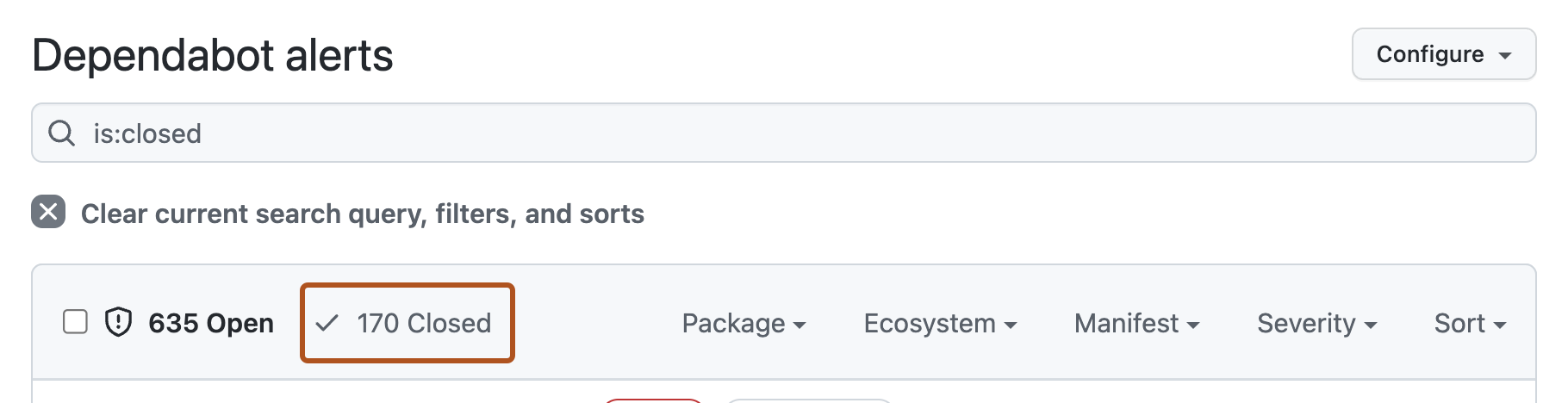
-
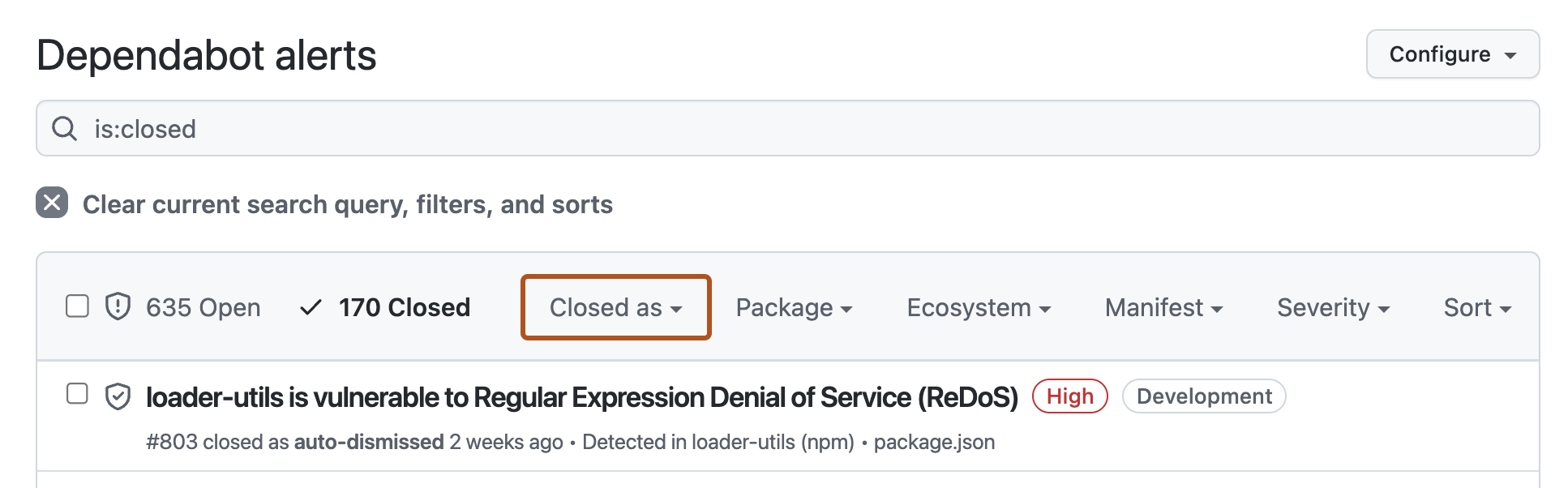
To see all auto-dismissed alerts, select Closed as, then in the dropdown menu, click Auto-dismissed.
-
To reopen an auto-dismissed alert, to the left of the alert title, click the checkbox adjacent to the alert, then click Reopen.



