此版本的 GitHub Enterprise Server 将于以下日期停止服务 2026-04-09. 即使针对重大安全问题,也不会发布补丁。 为了获得更好的性能、更高的安全性和新功能,请升级到最新版本的 GitHub Enterprise。 如需升级帮助,请联系 GitHub Enterprise 支持

在 GitHub Desktop 中查看分支历史记录

您可以在 GitHub Desktop 中查看关于任何提交的详细信息,包括提交引入的变更差异。

Platform navigation

Each commit shows:

  • The commit message
  • The time the commit was created
  • The committer's username and profile picture (if available)
  • The commit's SHA-1 hash (the unique ID)
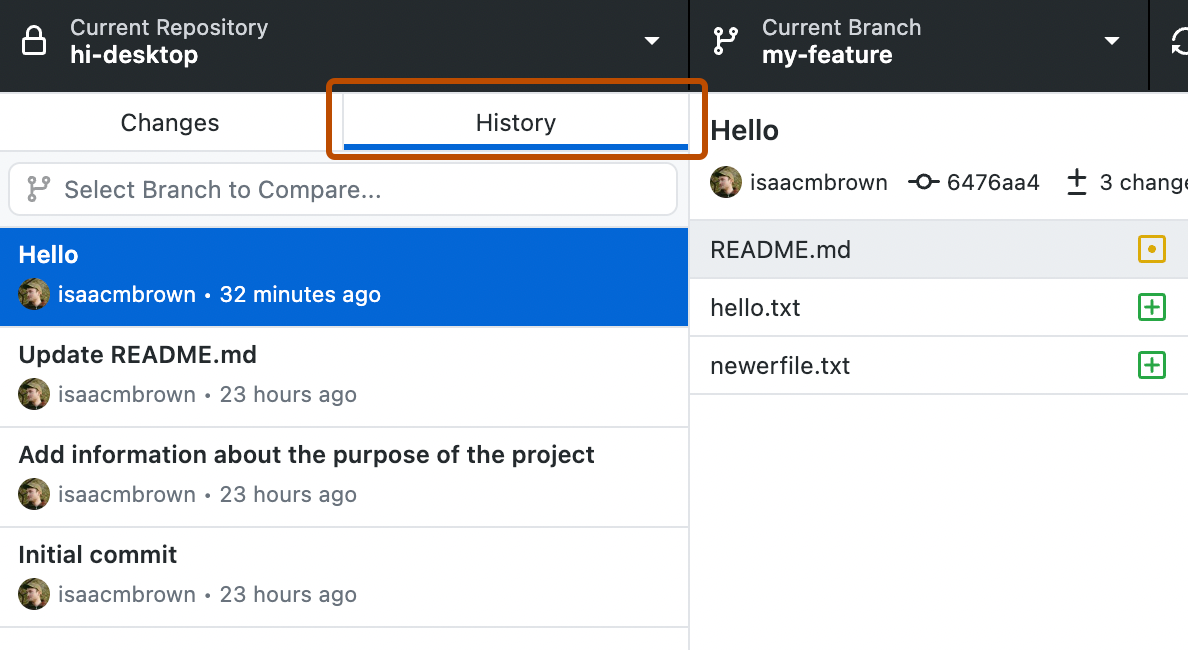
  1. In the left sidebar, click History.

    Screenshot of the "History" tab in the sidebar. Above a list of commits, the tab button, labeled "History", is highlighted with an orange outline.

  2. On the History tab, click the commit you'd like to review.

    You can also select a range of multiple consecutive commits using Command or Shift.

    You can also select a range of multiple consecutive commits using Ctrl or Shift.
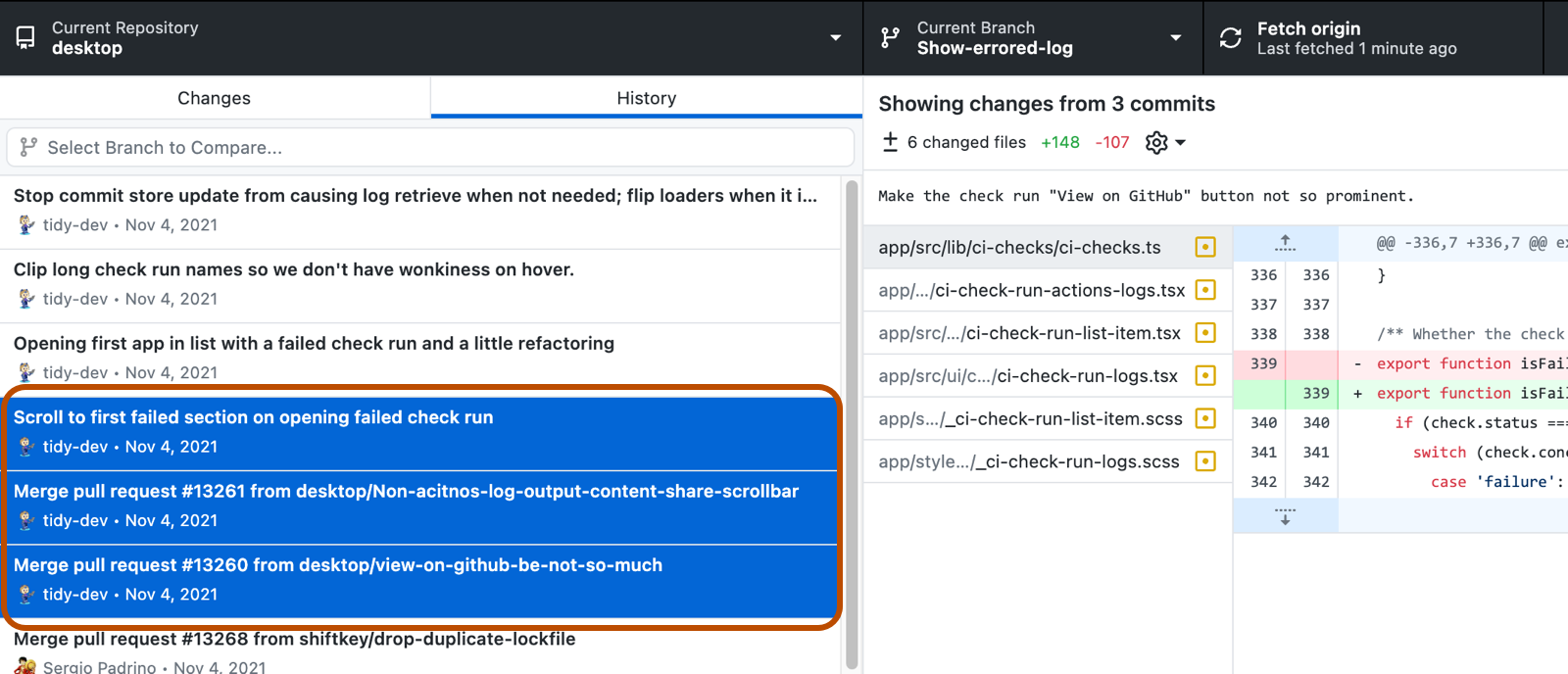
    Screenshot of a list of commits in the "History" tab. Three consecutive selected commits are highlighted in blue and outlined in orange.

  3. If there are multiple files in the commit or range of commits, click on an individual file to see the changes made to that file.
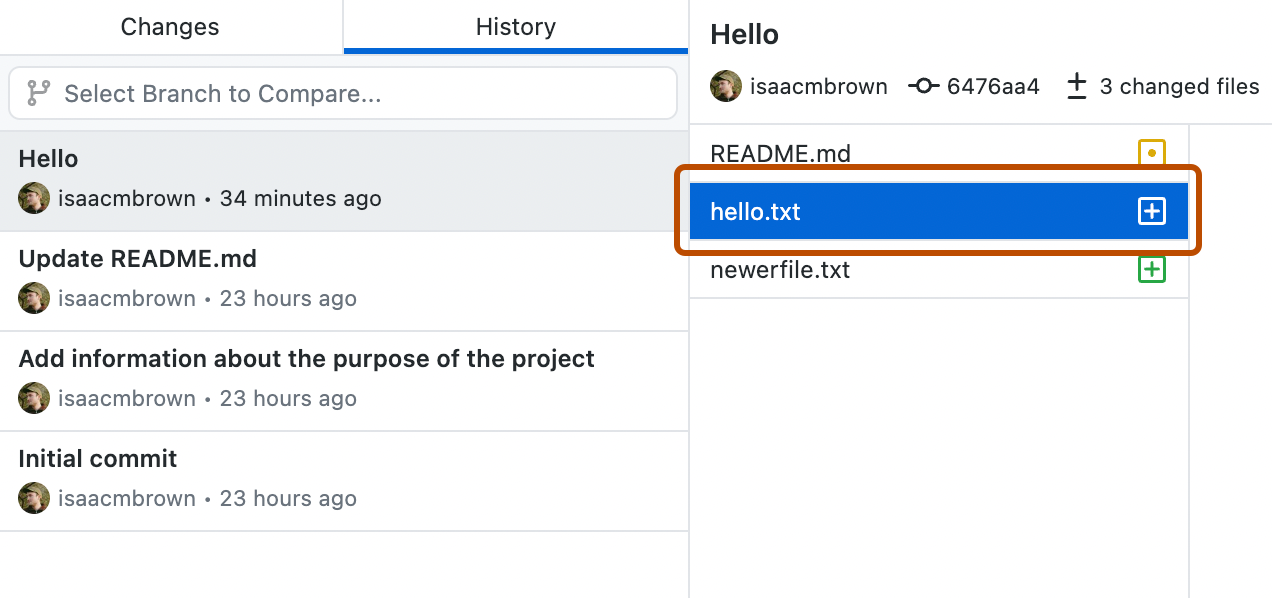
    Screenshot of a commit view. To the right of the "History" tab, the "hello.txt" file is selected from a list and highlighted with an orange outline.

Further reading