Esta versão deste artigo destina-se ao uso de instruções personalizadas do repositório no GitHub site. Clique nas guias acima para obter informações sobre como usar instruções personalizadas em outros ambientes.
Introdução
As instruções personalizadas de repositório permitem fornecer orientações e preferências específicas do repositório ao Copilot. Para saber mais, confira Sobre a personalização das respostas do GitHub Copilot.
Pré-requisitos para instruções personalizadas de repositório
-
Você deve ter um arquivo de instruções personalizado (confira as instruções abaixo).
-
Para Revisão de código com Copilot, sua escolha pessoal de usar instruções personalizadas deve estar definida como habilitada. Isso é habilitado por padrão. Confira Habilitando ou desabilitando instruções personalizadas de repositório mais adiante neste artigo.
Como criar instruções personalizadas
Copilot no GitHub suporta os três tipos de instruções personalizadas do repositório. Para obter detalhes sobre quais GitHub Copilot recursos dão suporte a esses tipos de instruções, consulte [AUTOTITLE](/copilot/concepts/prompting/response-customization?tool=webui#support-for-repository-custom-instructions).
* Instruções personalizadas em todo o repositório se aplicam a todas as solicitações feitas no contexto de um repositório.
Elas são especificados em um arquivo copilot-instructions.md no diretório .github do repositório. Consulte Como criar instruções personalizadas em todo o repositório.
-
**Instruções personalizadas específicas do caminho** se aplicam a solicitações feitas no contexto de arquivos que correspondem a um caminho especificado.Eles são especificados em um ou mais
NAME.instructions.mdarquivos dentro ou abaixo do.github/instructionsdiretório no repositório. Consulte Como criar instruções personalizadas específicas do caminho.Se o caminho especificado corresponder a um arquivo no qual Copilot está trabalhando e também existir um arquivo de instruções personalizadas no repositório, as instruções de ambos os arquivos serão usadas.
-
**Instruções do agente** são usadas por agentes de IA.Você pode criar um ou mais arquivos
AGENTS.mdarmazenados em qualquer lugar no repositório. Quando Copilot estiver funcionando, o arquivo mais próximoAGENTS.mdna árvore de diretório terá precedência. Para obter mais informações, consulte o repositório agentsmd/agents.md.Como alternativa, você pode usar um único arquivo
CLAUDE.mdouGEMINI.mdarmazenado na raiz do repositório.
Como criar instruções personalizadas em todo o repositório
Você pode criar seu próprio arquivo de instruções personalizadas do zero. Consulte Como escrever seu próprio arquivo copilot-instructions.md. Como alternativa, você pode pedir agente de codificação Copilot para gerar um para você.
Solicitando agente de codificação Copilot para gerar um copilot-instructions.md arquivo
-
Navegue até a guia agentes em github.com/copilot/agents.
Você também pode acessar esta página clicando no botão ao lado da barra de pesquisa em qualquer página GitHube selecionando Agentes na barra lateral.
-
Usando o menu suspenso no campo de solicitação, selecione o repositório para o qual você deseja Copilot gerar instruções personalizadas.
-
Copie o prompt a seguir e cole-o no campo de prompt, personalizando-o, se necessário:
Markdown Your task is to "onboard" this repository to Copilot coding agent by adding a .github/copilot-instructions.md file in the repository that contains information describing how a coding agent seeing it for the first time can work most efficiently. You will do this task only one time per repository and doing a good job can SIGNIFICANTLY improve the quality of the agent's work, so take your time, think carefully, and search thoroughly before writing the instructions. <Goals> - Reduce the likelihood of a coding agent pull request getting rejected by the user due to generating code that fails the continuous integration build, fails a validation pipeline, or having misbehavior. - Minimize bash command and build failures. - Allow the agent to complete its task more quickly by minimizing the need for exploration using grep, find, str_replace_editor, and code search tools. </Goals> <Limitations> - Instructions must be no longer than 2 pages. - Instructions must not be task specific. </Limitations> <WhatToAdd> Add the following high level details about the codebase to reduce the amount of searching the agent has to do to understand the codebase each time: <HighLevelDetails> - A summary of what the repository does. - High level repository information, such as the size of the repo, the type of the project, the languages, frameworks, or target runtimes in use. </HighLevelDetails> Add information about how to build and validate changes so the agent does not need to search and find it each time. <BuildInstructions> - For each of bootstrap, build, test, run, lint, and any other scripted step, document the sequence of steps to take to run it successfully as well as the versions of any runtime or build tools used. - Each command should be validated by running it to ensure that it works correctly as well as any preconditions and postconditions. - Try cleaning the repo and environment and running commands in different orders and document errors and misbehavior observed as well as any steps used to mitigate the problem. - Run the tests and document the order of steps required to run the tests. - Make a change to the codebase. Document any unexpected build issues as well as the workarounds. - Document environment setup steps that seem optional but that you have validated are actually required. - Document the time required for commands that failed due to timing out. - When you find a sequence of commands that work for a particular purpose, document them in detail. - Use language to indicate when something should always be done. For example: "always run npm install before building". - Record any validation steps from documentation. </BuildInstructions> List key facts about the layout and architecture of the codebase to help the agent find where to make changes with minimal searching. <ProjectLayout> - A description of the major architectural elements of the project, including the relative paths to the main project files, the location of configuration files for linting, compilation, testing, and preferences. - A description of the checks run prior to check in, including any GitHub workflows, continuous integration builds, or other validation pipelines. - Document the steps so that the agent can replicate these itself. - Any explicit validation steps that the agent can consider to have further confidence in its changes. - Dependencies that aren't obvious from the layout or file structure. - Finally, fill in any remaining space with detailed lists of the following, in order of priority: the list of files in the repo root, the contents of the README, the contents of any key source files, the list of files in the next level down of directories, giving priority to the more structurally important and snippets of code from key source files, such as the one containing the main method. </ProjectLayout> </WhatToAdd> <StepsToFollow> - Perform a comprehensive inventory of the codebase. Search for and view: - README.md, CONTRIBUTING.md, and all other documentation files. - Search the codebase for build steps and indications of workarounds like 'HACK', 'TODO', etc. - All scripts, particularly those pertaining to build and repo or environment setup. - All build and actions pipelines. - All project files. - All configuration and linting files. - For each file: - think: are the contents or the existence of the file information that the coding agent will need to implement, build, test, validate, or demo a code change? - If yes: - Document the command or information in detail. - Explicitly indicate which commands work and which do not and the order in which commands should be run. - Document any errors encountered as well as the steps taken to workaround them. - Document any other steps or information that the agent can use to reduce time spent exploring or trying and failing to run bash commands. - Finally, explicitly instruct the agent to trust the instructions and only perform a search if the information in the instructions is incomplete or found to be in error. </StepsToFollow> - Document any errors encountered as well as the steps taken to work-around them.
Your task is to "onboard" this repository to Copilot coding agent by adding a .github/copilot-instructions.md file in the repository that contains information describing how a coding agent seeing it for the first time can work most efficiently. You will do this task only one time per repository and doing a good job can SIGNIFICANTLY improve the quality of the agent's work, so take your time, think carefully, and search thoroughly before writing the instructions. <Goals> - Reduce the likelihood of a coding agent pull request getting rejected by the user due to generating code that fails the continuous integration build, fails a validation pipeline, or having misbehavior. - Minimize bash command and build failures. - Allow the agent to complete its task more quickly by minimizing the need for exploration using grep, find, str_replace_editor, and code search tools. </Goals> <Limitations> - Instructions must be no longer than 2 pages. - Instructions must not be task specific. </Limitations> <WhatToAdd> Add the following high level details about the codebase to reduce the amount of searching the agent has to do to understand the codebase each time: <HighLevelDetails> - A summary of what the repository does. - High level repository information, such as the size of the repo, the type of the project, the languages, frameworks, or target runtimes in use. </HighLevelDetails> Add information about how to build and validate changes so the agent does not need to search and find it each time. <BuildInstructions> - For each of bootstrap, build, test, run, lint, and any other scripted step, document the sequence of steps to take to run it successfully as well as the versions of any runtime or build tools used. - Each command should be validated by running it to ensure that it works correctly as well as any preconditions and postconditions. - Try cleaning the repo and environment and running commands in different orders and document errors and misbehavior observed as well as any steps used to mitigate the problem. - Run the tests and document the order of steps required to run the tests. - Make a change to the codebase. Document any unexpected build issues as well as the workarounds. - Document environment setup steps that seem optional but that you have validated are actually required. - Document the time required for commands that failed due to timing out. - When you find a sequence of commands that work for a particular purpose, document them in detail. - Use language to indicate when something should always be done. For example: "always run npm install before building". - Record any validation steps from documentation. </BuildInstructions> List key facts about the layout and architecture of the codebase to help the agent find where to make changes with minimal searching. <ProjectLayout> - A description of the major architectural elements of the project, including the relative paths to the main project files, the location of configuration files for linting, compilation, testing, and preferences. - A description of the checks run prior to check in, including any GitHub workflows, continuous integration builds, or other validation pipelines. - Document the steps so that the agent can replicate these itself. - Any explicit validation steps that the agent can consider to have further confidence in its changes. - Dependencies that aren't obvious from the layout or file structure. - Finally, fill in any remaining space with detailed lists of the following, in order of priority: the list of files in the repo root, the contents of the README, the contents of any key source files, the list of files in the next level down of directories, giving priority to the more structurally important and snippets of code from key source files, such as the one containing the main method. </ProjectLayout> </WhatToAdd> <StepsToFollow> - Perform a comprehensive inventory of the codebase. Search for and view: - README.md, CONTRIBUTING.md, and all other documentation files. - Search the codebase for build steps and indications of workarounds like 'HACK', 'TODO', etc. - All scripts, particularly those pertaining to build and repo or environment setup. - All build and actions pipelines. - All project files. - All configuration and linting files. - For each file: - think: are the contents or the existence of the file information that the coding agent will need to implement, build, test, validate, or demo a code change? - If yes: - Document the command or information in detail. - Explicitly indicate which commands work and which do not and the order in which commands should be run. - Document any errors encountered as well as the steps taken to workaround them. - Document any other steps or information that the agent can use to reduce time spent exploring or trying and failing to run bash commands. - Finally, explicitly instruct the agent to trust the instructions and only perform a search if the information in the instructions is incomplete or found to be in error. </StepsToFollow> - Document any errors encountered as well as the steps taken to work-around them. -
Click or press Enter.
Copilot will start a new session, which will appear in the list below the prompt box. Copilot will create a draft pull request, write your custom instructions, push them to the branch, then add you as a reviewer when it has finished, triggering a notification.
Writing your own copilot-instructions.md file
-
In the root of your repository, create a file named
.github/copilot-instructions.md.Create the
.githubdirectory if it does not already exist. -
Add natural language instructions to the file, in Markdown format.
Whitespace between instructions is ignored, so the instructions can be written as a single paragraph, each on a new line, or separated by blank lines for legibility.
Dica
The first time you create a pull request in a given repository with agente de codificação Copilot, Copilot will leave a comment with a link to automatically generate custom instructions for the repository.
Creating path-specific custom instructions
Observação
Currently, on GitHub.com, path-specific custom instructions are only supported for agente de codificação Copilot and Revisão de código com Copilot.
-
Crie o diretório
.github/instructionsse ele ainda não existir. -
Opcionalmente, crie subdiretórios de
.github/instructionspara organizar seus arquivos de instrução. -
Crie um ou mais arquivos
NAME.instructions.md, em queNAMEindica a finalidade das instruções. O nome do arquivo deve terminar com.instructions.md. -
No início do arquivo, crie um bloco frontmatter contendo a palavra-chave
applyTo. Use a sintaxe glob para especificar a quais arquivos ou diretórios as instruções se aplicam.Por exemplo:
---
applyTo: "app/models/**/*.rb"
---
Você pode especificar vários padrões separando-os com vírgulas. Por exemplo, para aplicar as instruções a todos os arquivos TypeScript no repositório, você pode usar o seguinte bloco frontmatter:
---
applyTo: "**/*.ts,**/*.tsx"
---
Exemplos do Glob:
-
`*` – corresponderá a todos os arquivos no diretório atual. -
`**` ou `**/*` – todos corresponderão a todos os arquivos em todos os diretórios. -
`*.py` – corresponderá a todos os `.py` arquivos no diretório atual. -
`**/*.py` – corresponderá recursivamente a todos os `.py` arquivos em todos os diretórios. -
`src/*.py` – corresponderá a todos os `.py` arquivos no `src` diretório. Por exemplo, `src/foo.py` mas `src/bar.py`_não_`src/foo/bar.py`. -
`src/**/*.py` – corresponderá recursivamente a todos os `.py` arquivos no `src` diretório. Por exemplo, `src/foo.py`, `src/foo/bar.py` e `src/foo/bar/baz.py`. -
`**/subdir/**/*.py` – fará a correspondência recursiva de todos os arquivos `.py` em qualquer diretório `subdir` em qualquer profundidade. Por exemplo, `subdir/foo.py`, `subdir/nested/bar.py`, `parent/subdir/baz.py`e `deep/parent/subdir/nested/qux.py`, mas _não_`foo.py` em um caminho que não contém um `subdir` diretório.
-
-
Opcionalmente, para impedir que o arquivo seja usado por agente de codificação Copilot ou Revisão de código com Copilot, adicione a palavra-chave
excludeAgentao bloco de frontmatter. Use"code-review"ou"coding-agent".Por exemplo, o arquivo a seguir será lido apenas por agente de codificação Copilot.
---
applyTo: "**"
excludeAgent: "code-review"
---
Se a
excludeAgentpalavra-chave não estiver incluída no bloco de matéria frontal, ambos Revisão de código com Copilot e agente de codificação Copilot usarão suas instruções. -
Adicione suas instruções personalizadas em linguagem natural usando o formato Markdown. O espaço em branco entre as instruções é ignorado, de modo que as instruções podem ser escritas como um só parágrafo, cada uma em uma nova linha ou separadas por linhas em branco para facilitar a leitura.
Adicionou com êxito um arquivo de instruções personalizado ao repositório?
          <a href="https://docs.github.io/success-test/yes.html" target="_blank" class="btn btn-outline mt-3 mr-3 no-underline">
          <span>Sim</span></a><a href="https://docs.github.io/success-test/no.html" target="_blank" class="btn btn-outline mt-3 mr-3 no-underline"><span>Não</span></a>
Instruções personalizadas em uso
As instruções nos arquivos estarão disponíveis para uso por Copilot assim que você salvar os arquivos. As instruções são adicionadas automaticamente às solicitações que você envia para Copilot.
In Chat Copilot (github.com/copilot), you can start a conversation that uses repository custom instructions by adding, as an attachment, the repository that contains the instructions file.
Whenever repository custom instructions are used by Chat Copilot, the instructions file is added as a reference for the response that's generated. To find out whether repository custom instructions were used, expand the list of references at the top of a chat response in the Chat panel and check whether the .github/copilot-instructions.md file is listed.

You can click the reference to open the file.
Observação
- Vários tipos de instruções personalizadas podem se aplicar a uma solicitação enviada ao Copilot. As instruções pessoais assumem a prioridade mais alta. As instruções do repositório vêm em seguida e, em seguida, as instruções da organização são priorizadas por último. No entanto, todas as instruções relevantes são fornecidas para Copilot.
- Sempre que possível, tente evitar fornecer conjuntos conflitantes de instruções. Se você estiver preocupado com a qualidade da resposta, poderá desabilitar temporariamente as instruções do repositório. Confira Adicionando instruções personalizadas do repositório para GitHub Copilot.
Enabling or disabling custom instructions for Revisão de código com Copilot
Custom instructions are enabled for Revisão de código com Copilot by default but you can disable, or re-enable, them in the repository settings on GitHub.com. This applies to Copilot's use of custom instructions for all code reviews it performs in this repository.
-
Em GitHub, acesse a página principal do repositório.
-
No nome do repositório, clique em Settings. Caso não consiga ver a guia "Configurações", selecione o menu suspenso , clique em Configurações.

-
In the "Code & automation" section of the sidebar, click Copilot, then Code review.
-
Toggle the “Use custom instructions when reviewing pull requests” option on or off.

Observação
Ao revisar uma solicitação de pull, o Copilot usa as instruções personalizadas na ramificação base da solicitação de pull. Por exemplo, se sua solicitação de pull busca mesclar my-feature-branch em main, o Copilot usará as instruções personalizadas em main.
Further reading
This version of this article is for using repository custom instructions and prompt files in VS Code. Click the tabs above for instructions on using custom instructions in other environments.
Introdução
As instruções personalizadas de repositório permitem fornecer orientações e preferências específicas do repositório ao Copilot. Para saber mais, confira Sobre a personalização das respostas do GitHub Copilot.
Pré-requisitos para instruções personalizadas de repositório
-
Você deve ter um arquivo de instruções personalizado (confira as instruções abaixo).
-
Custom instructions must be enabled. This feature is enabled by default. See Enabling or disabling repository custom instructions later in this article.
Creating custom instructions
VS Code supports three types of repository custom instructions. For details of which GitHub Copilot features support these types of instructions, see Sobre a personalização das respostas do GitHub Copilot.
-
Repository-wide custom instructions, which apply to all requests made in the context of a repository.
These are specified in a
copilot-instructions.mdfile in the.githubdirectory of the repository. See Creating repository-wide custom instructions. -
Path-specific custom instructions, which apply to requests made in the context of files that match a specified path.
These are specified in one or more
NAME.instructions.mdfiles within or below the.github/instructionsdirectory in the repository. See Creating path-specific custom instructions.If the path you specify matches a file that Copilot is working on, and a repository-wide custom instructions file also exists, then the instructions from both files are used.
-
Agent instructions are used by AI agents.
Você pode criar um ou mais arquivos
AGENTS.mdarmazenados em qualquer lugar no repositório. Quando Copilot estiver funcionando, o arquivo mais próximoAGENTS.mdna árvore de diretório terá precedência. Para obter mais informações, consulte o repositório agentsmd/agents.md.Observação
Support of
AGENTS.mdfiles outside of the workspace root is currently turned off by default. For details of how to enable this feature, see Use custom instructions in VS Code in the VS Code documentation.
Creating repository-wide custom instructions
-
In the root of your repository, create a file named
.github/copilot-instructions.md.Create the
.githubdirectory if it does not already exist. -
Add natural language instructions to the file, in Markdown format.
Whitespace between instructions is ignored, so the instructions can be written as a single paragraph, each on a new line, or separated by blank lines for legibility.
Creating path-specific custom instructions
-
Crie o diretório
.github/instructionsse ele ainda não existir. -
Opcionalmente, crie subdiretórios de
.github/instructionspara organizar seus arquivos de instrução. -
Crie um ou mais arquivos
NAME.instructions.md, em queNAMEindica a finalidade das instruções. O nome do arquivo deve terminar com.instructions.md. -
No início do arquivo, crie um bloco frontmatter contendo a palavra-chave
applyTo. Use a sintaxe glob para especificar a quais arquivos ou diretórios as instruções se aplicam.Por exemplo:
---
applyTo: "app/models/**/*.rb"
---
Você pode especificar vários padrões separando-os com vírgulas. Por exemplo, para aplicar as instruções a todos os arquivos TypeScript no repositório, você pode usar o seguinte bloco frontmatter:
---
applyTo: "**/*.ts,**/*.tsx"
---
Exemplos do Glob:
-
`*` – corresponderá a todos os arquivos no diretório atual. -
`**` ou `**/*` – todos corresponderão a todos os arquivos em todos os diretórios. -
`*.py` – corresponderá a todos os `.py` arquivos no diretório atual. -
`**/*.py` – corresponderá recursivamente a todos os `.py` arquivos em todos os diretórios. -
`src/*.py` – corresponderá a todos os `.py` arquivos no `src` diretório. Por exemplo, `src/foo.py` mas `src/bar.py`_não_`src/foo/bar.py`. -
`src/**/*.py` – corresponderá recursivamente a todos os `.py` arquivos no `src` diretório. Por exemplo, `src/foo.py`, `src/foo/bar.py` e `src/foo/bar/baz.py`. -
`**/subdir/**/*.py` – fará a correspondência recursiva de todos os arquivos `.py` em qualquer diretório `subdir` em qualquer profundidade. Por exemplo, `subdir/foo.py`, `subdir/nested/bar.py`, `parent/subdir/baz.py`e `deep/parent/subdir/nested/qux.py`, mas _não_`foo.py` em um caminho que não contém um `subdir` diretório.
-
-
Opcionalmente, para impedir que o arquivo seja usado por agente de codificação Copilot ou Revisão de código com Copilot, adicione a palavra-chave
excludeAgentao bloco de frontmatter. Use"code-review"ou"coding-agent".Por exemplo, o arquivo a seguir será lido apenas por agente de codificação Copilot.
---
applyTo: "**"
excludeAgent: "code-review"
---
Se a
excludeAgentpalavra-chave não estiver incluída no bloco de matéria frontal, ambos Revisão de código com Copilot e agente de codificação Copilot usarão suas instruções. -
Adicione suas instruções personalizadas em linguagem natural usando o formato Markdown. O espaço em branco entre as instruções é ignorado, de modo que as instruções podem ser escritas como um só parágrafo, cada uma em uma nova linha ou separadas por linhas em branco para facilitar a leitura.
Adicionou com êxito um arquivo de instruções personalizado ao repositório?
          <a href="https://docs.github.io/success-test/yes.html" target="_blank" class="btn btn-outline mt-3 mr-3 no-underline">
          <span>Sim</span></a><a href="https://docs.github.io/success-test/no.html" target="_blank" class="btn btn-outline mt-3 mr-3 no-underline"><span>Não</span></a>
Instruções personalizadas em uso
As instruções nos arquivos estarão disponíveis para uso por Copilot assim que você salvar os arquivos. As instruções são adicionadas automaticamente às solicitações que você envia para Copilot.
As instruções personalizadas não ficam visíveis na exibição do Chat ou no chat embutido, mas você pode verificar se elas estão sendo usadas pelo Copilot observando a lista Referências de uma resposta na exibição do Chat. Se foram adicionadas instruções personalizadas à solicitação que foi enviada para o modelo, o arquivo .github/copilot-instructions.md será listado como uma referência. Selecione a referência para abrir o arquivo.

Habilitando ou desabilitando instruções personalizadas de repositório
Você pode escolher se quer ou não que o Copilot use instruções personalizadas baseadas em repositório.
Habilitar ou desabilitar instruções personalizadas para o Chat Copilot
As instruções personalizadas são habilitadas para o Chat Copilot por padrão, mas você pode desabilitá-las ou reabilitá-las a qualquer momento. Isso se aplica ao seu próprio uso do Chat Copilot e não afeta outros usuários.
- Open the Setting editor by using the keyboard shortcut Command+, (Mac) / Ctrl+, (Linux/Windows).
- Type
instruction filein the search box. - Select or clear the checkbox under Code Generation: Use Instruction Files.
Como habilitar ou desabilitar instruções personalizadas do repositório para o Revisão de código com Copilot
As instruções personalizadas são habilitadas para o Revisão de código com Copilot por padrão, mas você pode desabilitá-las ou reabilitá-los nas configurações do repositório em GitHub.com. Isso se aplica ao uso do Copilot de instruções personalizadas para todas as revisões de código executadas neste repositório.
-
Em GitHub, acesse a página principal do repositório.
-
No nome do repositório, clique em Settings. Caso não consiga ver a guia "Configurações", selecione o menu suspenso , clique em Configurações.
-
Na seção "Code & automation" da barra lateral, clique em Copilot e em Code review.
-
Ative ou desative a opção "Use custom instructions when reviewing pull requests".
Enabling and using prompt files
Observação
- Os arquivos de prompt do Copilot estão no versão prévia pública e sujeitos a alterações. Os arquivos de prompt só estão disponíveis em VS Code, Visual Studio e IDEs JetBrains. Consulte Sobre a personalização das respostas do GitHub Copilot.
- Para obter exemplos de arquivos de prompt com contribuição da comunidade para linguagens e cenários específicos, confira o repositório Personalizações incríveis do GitHub Copilot.
Prompt files let you build and share reusable prompt instructions with additional context. A prompt file is a Markdown file, stored in your workspace, that mimics the existing format of writing prompts in Chat Copilot (for example, Rewrite #file:x.ts). You can have multiple prompt files in your workspace, each of which defines a prompt for a different purpose.
Enabling prompt files
To enable prompt files, configure the workspace settings.
- Open the command palette by pressing Ctrl+Shift+P (Windows/Linux) / Command+Shift+P (Mac).
- Type "Open Workspace Settings (JSON)" and select the option that's displayed.
- In the
settings.jsonfile, add"chat.promptFiles": trueto enable the.github/promptsfolder as the location for prompt files. This folder will be created if it does not already exist.
Creating prompt files
-
Open the command palette by pressing Ctrl+Shift+P (Windows/Linux) / Command+Shift+P (Mac).
-
Type "prompt" and select Chat: Create Prompt.
-
Enter a name for the prompt file, excluding the
.prompt.mdfile name extension. The name can contain alphanumeric characters and spaces and should describe the purpose of the prompt information the file will contain. -
Write the prompt instructions, using Markdown formatting.
You can reference other files in the workspace by using Markdown links—for example,
[index](../../web/index.ts)—or by using the#file:../../web/index.tssyntax. Paths are relative to the prompt file. Referencing other files allows you to provide additional context, such as API specifications or product documentation.
Using prompt files
-
At the bottom of the Chat Copilot view, click the Attach context icon ().
-
In the dropdown menu, click Prompt... and choose the prompt file you want to use.
-
Optionally, attach additional files, including prompt files, to provide more context.
-
Optionally, type additional information in the chat prompt box.
Whether you need to do this or not depends on the contents of the prompt you are using.
-
Submit the chat prompt.
For more information about prompt files, see Use prompt files in Visual Studio Code in the Visual Studio Code documentation.
Further reading
This version of this article is for using repository custom instructions and prompt files in Visual Studio. Click the tabs above for instructions on using custom instructions in other environments.
Introdução
As instruções personalizadas de repositório permitem fornecer orientações e preferências específicas do repositório ao Copilot. Para saber mais, confira Sobre a personalização das respostas do GitHub Copilot.
Pré-requisitos para instruções personalizadas de repositório
-
Você deve ter um arquivo de instruções personalizado (confira as instruções abaixo).
-
The Enable custom instructions... option must be enabled in your settings. This is enabled by default. See Enabling or disabling repository custom instructions later in this article.
Creating custom instructions
Visual Studio supports two types of custom instructions. For details of which GitHub Copilot features support these types of instructions, see Sobre a personalização das respostas do GitHub Copilot.
-
Repository-wide custom instructions, which apply to all requests made in the context of a repository.
These are specified in a
copilot-instructions.mdfile in the.githubdirectory of the repository. See Creating repository-wide custom instructions. -
Path-specific custom instructions, which apply to requests made in the context of files that match a specified path.
These are specified in one or more
NAME.instructions.mdfiles within or below the.github/instructionsdirectory in the repository. See Creating path-specific custom instructions.If the path you specify matches a file that Copilot is working on, and a repository-wide custom instructions file also exists, then the instructions from both files are used.
Creating repository-wide custom instructions
-
In the root of your repository, create a file named
.github/copilot-instructions.md.Create the
.githubdirectory if it does not already exist. -
Add natural language instructions to the file, in Markdown format.
Whitespace between instructions is ignored, so the instructions can be written as a single paragraph, each on a new line, or separated by blank lines for legibility.
Creating path-specific custom instructions
-
Crie o diretório
.github/instructionsse ele ainda não existir. -
Opcionalmente, crie subdiretórios de
.github/instructionspara organizar seus arquivos de instrução. -
Crie um ou mais arquivos
NAME.instructions.md, em queNAMEindica a finalidade das instruções. O nome do arquivo deve terminar com.instructions.md. -
No início do arquivo, crie um bloco frontmatter contendo a palavra-chave
applyTo. Use a sintaxe glob para especificar a quais arquivos ou diretórios as instruções se aplicam.Por exemplo:
---
applyTo: "app/models/**/*.rb"
---
Você pode especificar vários padrões separando-os com vírgulas. Por exemplo, para aplicar as instruções a todos os arquivos TypeScript no repositório, você pode usar o seguinte bloco frontmatter:
---
applyTo: "**/*.ts,**/*.tsx"
---
Exemplos do Glob:
-
`*` – corresponderá a todos os arquivos no diretório atual. -
`**` ou `**/*` – todos corresponderão a todos os arquivos em todos os diretórios. -
`*.py` – corresponderá a todos os `.py` arquivos no diretório atual. -
`**/*.py` – corresponderá recursivamente a todos os `.py` arquivos em todos os diretórios. -
`src/*.py` – corresponderá a todos os `.py` arquivos no `src` diretório. Por exemplo, `src/foo.py` mas `src/bar.py`_não_`src/foo/bar.py`. -
`src/**/*.py` – corresponderá recursivamente a todos os `.py` arquivos no `src` diretório. Por exemplo, `src/foo.py`, `src/foo/bar.py` e `src/foo/bar/baz.py`. -
`**/subdir/**/*.py` – fará a correspondência recursiva de todos os arquivos `.py` em qualquer diretório `subdir` em qualquer profundidade. Por exemplo, `subdir/foo.py`, `subdir/nested/bar.py`, `parent/subdir/baz.py`e `deep/parent/subdir/nested/qux.py`, mas _não_`foo.py` em um caminho que não contém um `subdir` diretório.
-
-
Opcionalmente, para impedir que o arquivo seja usado por agente de codificação Copilot ou Revisão de código com Copilot, adicione a palavra-chave
excludeAgentao bloco de frontmatter. Use"code-review"ou"coding-agent".Por exemplo, o arquivo a seguir será lido apenas por agente de codificação Copilot.
---
applyTo: "**"
excludeAgent: "code-review"
---
Se a
excludeAgentpalavra-chave não estiver incluída no bloco de matéria frontal, ambos Revisão de código com Copilot e agente de codificação Copilot usarão suas instruções. -
Adicione suas instruções personalizadas em linguagem natural usando o formato Markdown. O espaço em branco entre as instruções é ignorado, de modo que as instruções podem ser escritas como um só parágrafo, cada uma em uma nova linha ou separadas por linhas em branco para facilitar a leitura.
Adicionou com êxito um arquivo de instruções personalizado ao repositório?
          <a href="https://docs.github.io/success-test/yes.html" target="_blank" class="btn btn-outline mt-3 mr-3 no-underline">
          <span>Sim</span></a><a href="https://docs.github.io/success-test/no.html" target="_blank" class="btn btn-outline mt-3 mr-3 no-underline"><span>Não</span></a>
Instruções personalizadas em uso
As instruções nos arquivos estarão disponíveis para uso por Copilot assim que você salvar os arquivos. As instruções são adicionadas automaticamente às solicitações que você envia para Copilot.
As instruções personalizadas não ficam visíveis na exibição do Chat ou no chat embutido, mas você pode verificar se elas estão sendo usadas pelo Copilot observando a lista Referências de uma resposta na exibição do Chat. Se foram adicionadas instruções personalizadas à solicitação que foi enviada para o modelo, o arquivo .github/copilot-instructions.md será listado como uma referência. Selecione a referência para abrir o arquivo.

Habilitando ou desabilitando instruções personalizadas de repositório
Você pode escolher se quer ou não que o Copilot use instruções personalizadas baseadas em repositório.
Habilitar ou desabilitar instruções personalizadas para o Chat Copilot
As instruções personalizadas são habilitadas para o Chat Copilot por padrão, mas você pode desabilitá-las ou reabilitá-las a qualquer momento. Isso se aplica ao seu próprio uso do Chat Copilot e não afeta outros usuários.
-
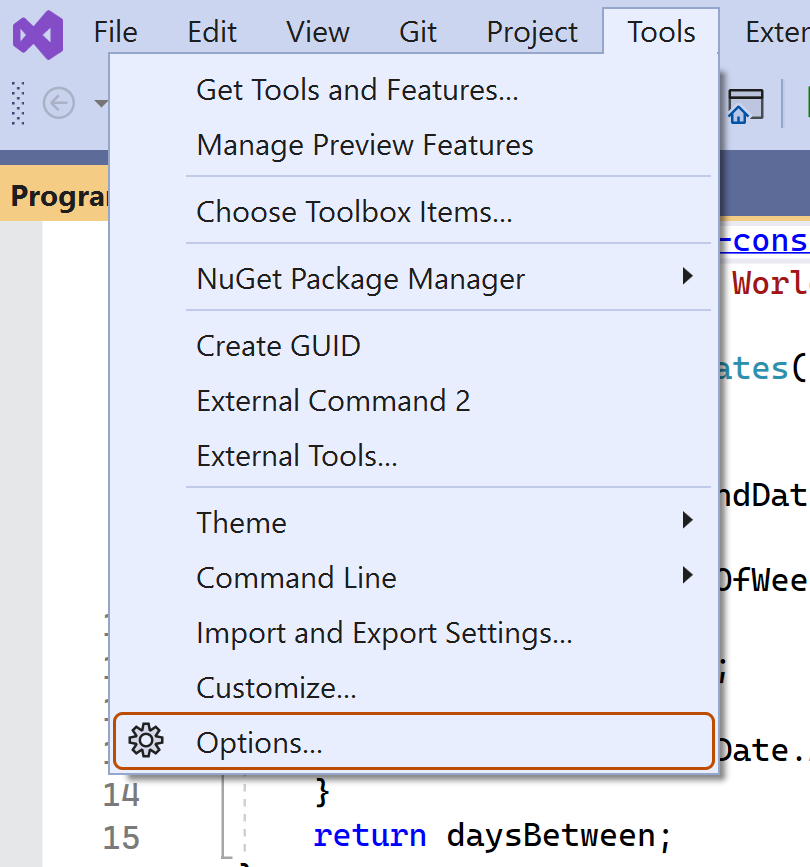
In the Visual Studio menu bar, under Tools, click Options.
-
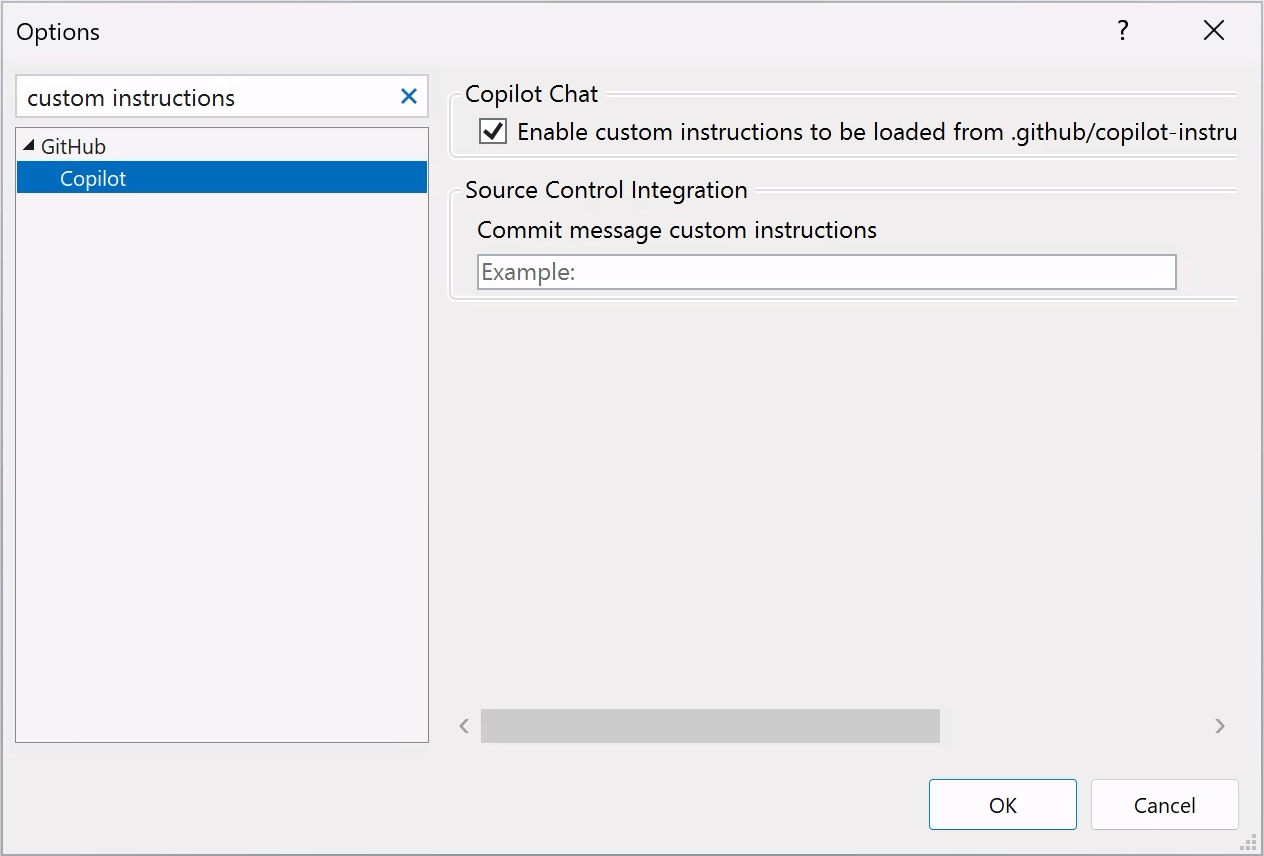
In the "Options" dialog, type
custom instructionsin the search box, then click Copilot. -
Select or clear the checkbox for Enable custom instructions to be loaded from .github/copilot-instructions.md files and added to requests.


Como habilitar ou desabilitar instruções personalizadas do repositório para o Revisão de código com Copilot
As instruções personalizadas são habilitadas para o Revisão de código com Copilot por padrão, mas você pode desabilitá-las ou reabilitá-los nas configurações do repositório em GitHub.com. Isso se aplica ao uso do Copilot de instruções personalizadas para todas as revisões de código executadas neste repositório.
-
Em GitHub, acesse a página principal do repositório.
-
No nome do repositório, clique em Settings. Caso não consiga ver a guia "Configurações", selecione o menu suspenso , clique em Configurações.
-
Na seção "Code & automation" da barra lateral, clique em Copilot e em Code review.
-
Ative ou desative a opção "Use custom instructions when reviewing pull requests".
Using prompt files
Observação
- Os arquivos de prompt do Copilot estão no versão prévia pública e sujeitos a alterações. Os arquivos de prompt só estão disponíveis em VS Code, Visual Studio e IDEs JetBrains. Consulte Sobre a personalização das respostas do GitHub Copilot.
- Para obter exemplos de arquivos de prompt com contribuição da comunidade para linguagens e cenários específicos, confira o repositório Personalizações incríveis do GitHub Copilot.
Prompt files let you build and share reusable prompt instructions with additional context. A prompt file is a Markdown file, stored in your workspace, that mimics the existing format of writing prompts in Chat Copilot (for example, Rewrite #file:x.ts). You can have multiple prompt files in your workspace, each of which defines a prompt for a different purpose.
Creating prompt files
-
Add a prompt file, including the
.prompt.mdfile name extension inside the.github/promptsfolder in the root of the repository. The name can contain alphanumeric characters and spaces and should describe the purpose of the prompt information the file will contain. -
Write the prompt instructions, using Markdown formatting.
You can reference other files in the workspace by using Markdown links—for example,
[index](../../web/index.ts)—or by using the#file:'../../web/index.ts'syntax. Paths are relative to the prompt file. Referencing other files allows you to provide additional context, such as API specifications or product documentation.
For more information about prompt files, see Use prompt files in Visual Studio in the Visual Studio documentation.
Further reading
This version of this article is for using repository custom instructions in JetBrains IDEs. Click the tabs above for instructions on using custom instructions in other environments.
Introdução
As instruções personalizadas de repositório permitem fornecer orientações e preferências específicas do repositório ao Copilot. Para saber mais, confira Sobre a personalização das respostas do GitHub Copilot.
Pré-requisitos para instruções personalizadas de repositório
-
Você deve ter um arquivo de instruções personalizado (confira as instruções abaixo).
-
The latest version of the Copilot extension must be installed in your JetBrains IDE.
Creating custom instructions
JetBrains IDEs support a single .github/copilot-instructions.md custom instructions file stored in the repository, and a locally stored global-copilot-instructions.md file.
You can create the .github/copilot-instructions.md file in your repository using the Copilot settings page, or you can create the file manually.
Whitespace between instructions is ignored, so the instructions can be written as a single paragraph, each on a new line, or separated by blank lines for legibility.
Using the settings page
- No seu IDE JetBrains, clique no menu Arquivo (Windows) ou no nome do aplicativo na barra de menus (macOS) e clique em Configurações.
- Na barra lateral esquerda, clique em Ferramentas, clique em GitHub Copilot, then click Customizations.
- Under "Copilot Instructions", click Workspace or Global to choose whether the custom instructions apply to the current workspace or all workspaces.
Manually creating a workspace custom instructions file
-
In the root of your repository, create a file named
.github/copilot-instructions.md.Create the
.githubdirectory if it does not already exist. -
Add natural language instructions to the file, in Markdown format.
Once saved, these instructions will apply to the current workspace in JetBrains IDEs that you open with Copilot enabled.
Manually creating a global custom instructions file
To apply the same instructions across all workspaces in JetBrains IDEs, you can create a global custom instructions file on your local machine.
-
Open your file explorer or terminal.
-
Navigate to the appropriate location for your operating system:
- macOS:
/Users/YOUR-USERNAME/.config/github-copilot/intellij/ - Windows:
C:\Users\YOUR-USERNAME\AppData\Local\github-copilot\intellij\
- macOS:
-
Create a file named
global-copilot-instructions.mdin that directory. -
Add your custom instructions in natural language, using Markdown format.
Once saved, these instructions will apply globally across all workspaces in JetBrains IDEs that you open with Copilot enabled.
Adicionou com êxito um arquivo de instruções personalizado ao repositório?
          <a href="https://docs.github.io/success-test/yes.html" target="_blank" class="btn btn-outline mt-3 mr-3 no-underline">
          <span>Sim</span></a><a href="https://docs.github.io/success-test/no.html" target="_blank" class="btn btn-outline mt-3 mr-3 no-underline"><span>Não</span></a>
Instruções personalizadas em uso
As instruções nos arquivos estarão disponíveis para uso por Copilot assim que você salvar os arquivos. As instruções são adicionadas automaticamente às solicitações que você envia para Copilot.
As instruções personalizadas não ficam visíveis na exibição do Chat ou no chat embutido, mas você pode verificar se elas estão sendo usadas pelo Copilot observando a lista Referências de uma resposta na exibição do Chat. Se foram adicionadas instruções personalizadas à solicitação que foi enviada para o modelo, o arquivo .github/copilot-instructions.md será listado como uma referência. Selecione a referência para abrir o arquivo.
Using prompt files
Observação
- Os arquivos de prompt do Copilot estão no versão prévia pública e sujeitos a alterações. Os arquivos de prompt só estão disponíveis em VS Code, Visual Studio e IDEs JetBrains. Consulte Sobre a personalização das respostas do GitHub Copilot.
- Para obter exemplos de arquivos de prompt com contribuição da comunidade para linguagens e cenários específicos, confira o repositório Personalizações incríveis do GitHub Copilot.
Prompt files let you build and share reusable prompt instructions with additional context. A prompt file is a Markdown file, stored in your workspace, that mimics the existing format of writing prompts in Chat Copilot (for example, Rewrite #file:x.ts). You can have multiple prompt files in your workspace, each of which defines a prompt for a different purpose.
When writing prompt instructions, you can reference other files in the workspace by using Markdown links—for example, [index](../../web/index.ts)—or by using the #file:../../web/index.ts syntax. Paths are relative to the prompt file. Referencing other files allows you to provide additional context, such as API specifications or product documentation.
Once prompt files are saved, their instructions will apply to the current workspace in JetBrains IDEs that you open with Copilot enabled.
Creating prompt files using the command line
- Create the
.github/promptsdirectory if it doesn't already exist in your workspace. This directory will be the location for your prompt files. - Create a prompt file in the
.github/promptsdirectory. The prompt file name can contain alphanumeric characters and spaces and should describe the purpose of the prompt information the file will contain. The file name must end with the.prompt.mdfile name extension, for exampleTESTPROMPT.prompt.md. - Write the prompt instructions using Markdown formatting, and save the file.
Creating prompt files using the settings page
- No seu IDE JetBrains, clique no menu Arquivo (Windows) ou no nome do aplicativo na barra de menus (macOS) e clique em Configurações.
- Under Tools, under GitHub Copilot, click Edit Settings.
- Under "Settings Categories", click Customizations.
- Under "Prompt Files", click Workspace, to create a prompt file in your workspace.
- Enter a name for the prompt file, excluding the
.prompt.mdfile name extension. The prompt file name can contain alphanumeric characters and spaces and should describe the purpose of the prompt information the file will contain. - Click Ok to save the prompt file name.
- Write the prompt instructions using Markdown formatting, and save the file.
Using prompt files
-
In the chat input box, type
/followed by the name of the prompt file. For example,/TESTPROMPT. -
Optionally, attach additional files, to provide more context.
-
Optionally, type additional information in the chat prompt box.
Whether you need to do this or not depends on the contents of the prompt you are using.
-
Submit the chat prompt.
Further reading
This version of this article is for using repository custom instructions in Xcode. Click the tabs above for instructions on using custom instructions in other environments.
Introdução
As instruções personalizadas de repositório permitem fornecer orientações e preferências específicas do repositório ao Copilot. Para saber mais, confira Sobre a personalização das respostas do GitHub Copilot.
Pré-requisitos para instruções personalizadas de repositório
-
Você deve ter um arquivo de instruções personalizado (confira as instruções abaixo).
-
The latest version of the Copilot extension must be installed in Xcode.
Creating custom instructions
Xcode supports a single .github/copilot-instructions.md custom instructions file stored in the repository.
You can create a custom instructions file in your repository via the Copilot settings page.
Whitespace between instructions is ignored, so the instructions can be written as a single paragraph, each on a new line, or separated by blank lines for legibility.
- Open the GitHub Copilot for Xcode application.
- At the top of the application window, under Settings, click Advanced.
- To the right of "Custom Instructions", click Current Workspace or Global to choose whether the custom instructions apply to the current workspace or all workspaces.
Adicionou com êxito um arquivo de instruções personalizado ao repositório?
          <a href="https://docs.github.io/success-test/yes.html" target="_blank" class="btn btn-outline mt-3 mr-3 no-underline">
          <span>Sim</span></a><a href="https://docs.github.io/success-test/no.html" target="_blank" class="btn btn-outline mt-3 mr-3 no-underline"><span>Não</span></a>
Instruções personalizadas em uso
As instruções nos arquivos estarão disponíveis para uso por Copilot assim que você salvar os arquivos. As instruções são adicionadas automaticamente às solicitações que você envia para Copilot.
As instruções personalizadas não ficam visíveis na exibição do Chat ou no chat embutido, mas você pode verificar se elas estão sendo usadas pelo Copilot observando a lista Referências de uma resposta na exibição do Chat. Se foram adicionadas instruções personalizadas à solicitação que foi enviada para o modelo, o arquivo .github/copilot-instructions.md será listado como uma referência. Selecione a referência para abrir o arquivo.
Further reading
Observação
This feature is currently in versão prévia pública and is subject to change.
This version of this article is for using repository custom instructions in Eclipse. Click the tabs above for instructions on using custom instructions in other environments.
Introdução
As instruções personalizadas de repositório permitem fornecer orientações e preferências específicas do repositório ao Copilot. Para saber mais, confira Sobre a personalização das respostas do GitHub Copilot.
Pré-requisitos para instruções personalizadas de repositório
-
Você deve ter um arquivo de instruções personalizado (confira as instruções abaixo).
-
The latest version of the Copilot extension must be installed in Eclipse.
Creating custom instructions
Eclipse supports two types of repository custom instructions: workspace and project custom instructions.
To create a workspace custom instructions file, you can use the Copilot settings page. To create a project custom instructions file, you can create the file manually in the project directory.
Whitespace between instructions is ignored, so the instructions can be written as a single paragraph, each on a new line, or separated by blank lines for legibility.
Creating a workspace custom instructions file
- To open the Chat Copilot panel, click the Copilot icon () in the status bar at the bottom of Eclipse.
- From the menu, select "Edit preferences".
- In the left pane, expand GitHub Copilot and click Custom Instructions.
- Select Enable workspace instructions.
- In the "Workspace" section, under "Set custom instructions to guide Copilot's code suggestions in this workspace", add natural language instructions to the file, in Markdown format.
Creating a project custom instructions file
- In the root of your project directory, create a file named
.github/copilot-instructions.md. - Add your custom instructions in natural language, using Markdown format.
Once saved, these instructions will apply to the current project in Eclipse that you open with Copilot enabled.
Adicionou com êxito um arquivo de instruções personalizado ao repositório?
          <a href="https://docs.github.io/success-test/yes.html" target="_blank" class="btn btn-outline mt-3 mr-3 no-underline">
          <span>Sim</span></a><a href="https://docs.github.io/success-test/no.html" target="_blank" class="btn btn-outline mt-3 mr-3 no-underline"><span>Não</span></a>
Instruções personalizadas em uso
As instruções nos arquivos estarão disponíveis para uso por Copilot assim que você salvar os arquivos. As instruções são adicionadas automaticamente às solicitações que você envia para Copilot.
Further reading
- Suporte para diferentes tipos de instruções personalizadas
- Instruções personalizadas—a curated collection of examples