Примечание.
Администратор сайта должен включить code scanning перед использованием этой функции. Если вы хотите использовать GitHub Actions для сканирования кода, администратор сайта также должен включить GitHub Actions и настроить необходимую инфраструктуру. Дополнительные сведения см. в разделе Настройка сканирования кода для устройства.
Примечание.
В этой статье описываются функции, доступные в версии действия CodeQL и связанного пакета CodeQL CLI в первоначальном выпуске этой версии GitHub Enterprise Server. Если ваше предприятие использует более последнюю версию действия CodeQL, ознакомьтесь с версией GitHub Enterprise Cloud этой статьи, чтобы узнать о последних функциях. Сведения об использовании последней версии см. в разделе Настройка сканирования кода для устройства.
If you do not need a highly customizable code scanning configuration, consider using default setup for code scanning. For more information, see О типах настроек для сканирования кода.
Prerequisites
Your repository is eligible for advanced setup if it meets these requirements.
- It uses CodeQL-supported languages or you plan to generate code scanning results with a third-party tool.
- GitHub Actions включен.
- Параметр GitHub Advanced Security включен.
If the server on which you are running GitHub Enterprise Server is not connected to the internet, your site administrator can enable CodeQL code scanning by making the CodeQL analysis bundle available on the server. For more information, see Настройка сканирования кода для устройства.
Configuring advanced setup for code scanning with CodeQL
You can customize your CodeQL analysis by creating and editing a workflow file. Selecting advanced setup generates a basic workflow file for you to customize using standard workflow syntax and specifying options for the CodeQL action. See Рабочие процессы and Параметры настройки рабочих процессов для сканирования кода.
-
На GitHubперейдите на главную страницу репозитория.
-
Под именем репозитория щелкните Settings. Если вкладка "Параметры" не отображается, выберите раскрывающееся меню и нажмите кнопку "Параметры".

-
В разделе "Безопасность" боковой панели щелкните Code security and analysis.
-
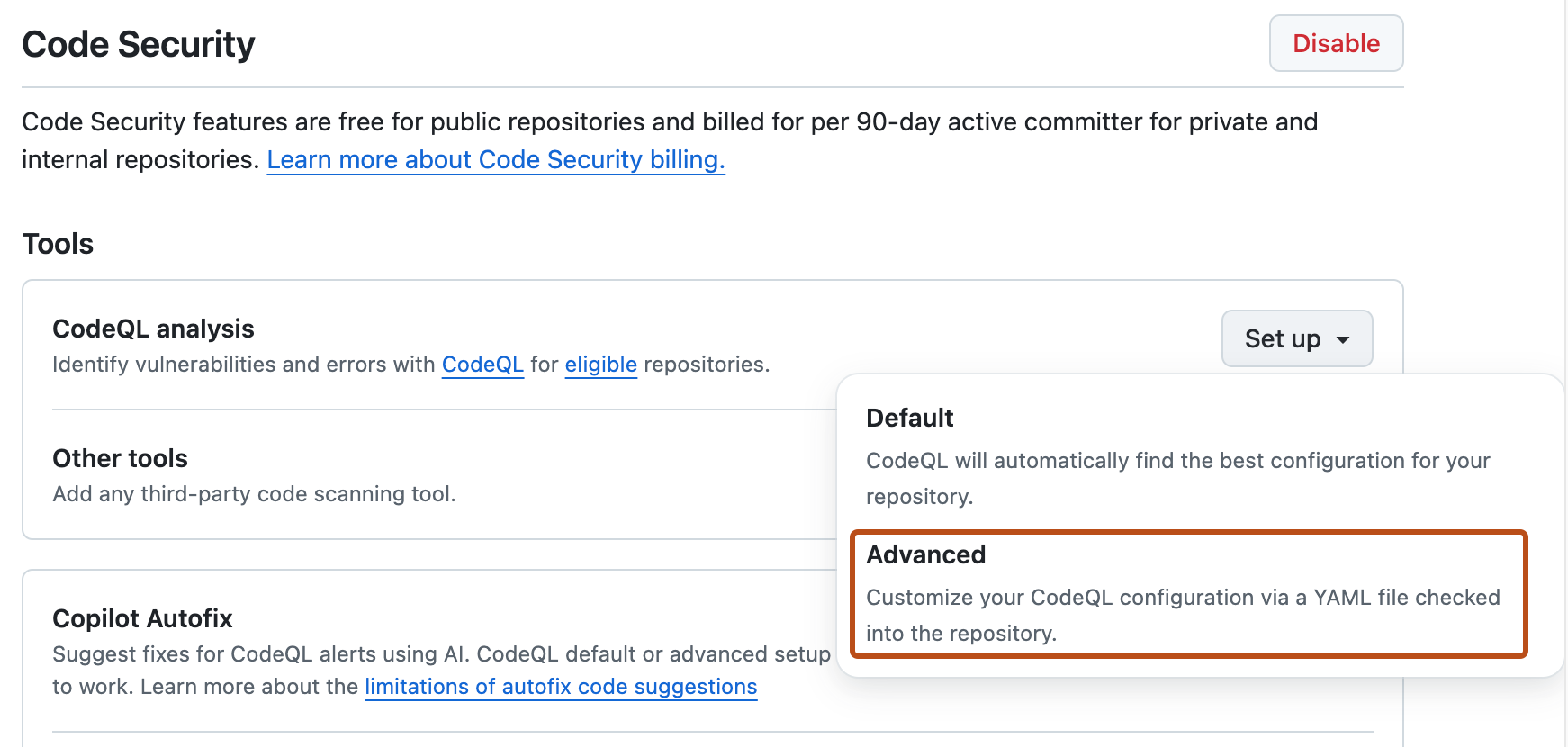
Scroll down to "Code scanning", in the "CodeQL analysis" row select Set up , then click Advanced.
Примечание.
If you are switching from default setup to advanced setup, in the "CodeQL analysis" row, select , then click Switch to advanced. In the pop-up window that appears, click Disable CodeQL.
-
To customize how code scanning scans your code, edit the workflow.
Generally, you can commit the Рабочий процесс анализа CodeQL without making any changes to it. However, many of the third-party workflows require additional configuration, so read the comments in the workflow before committing.
For more information, see Параметры настройки рабочих процессов для сканирования кода and CodeQL code scanning for compiled languages.
-
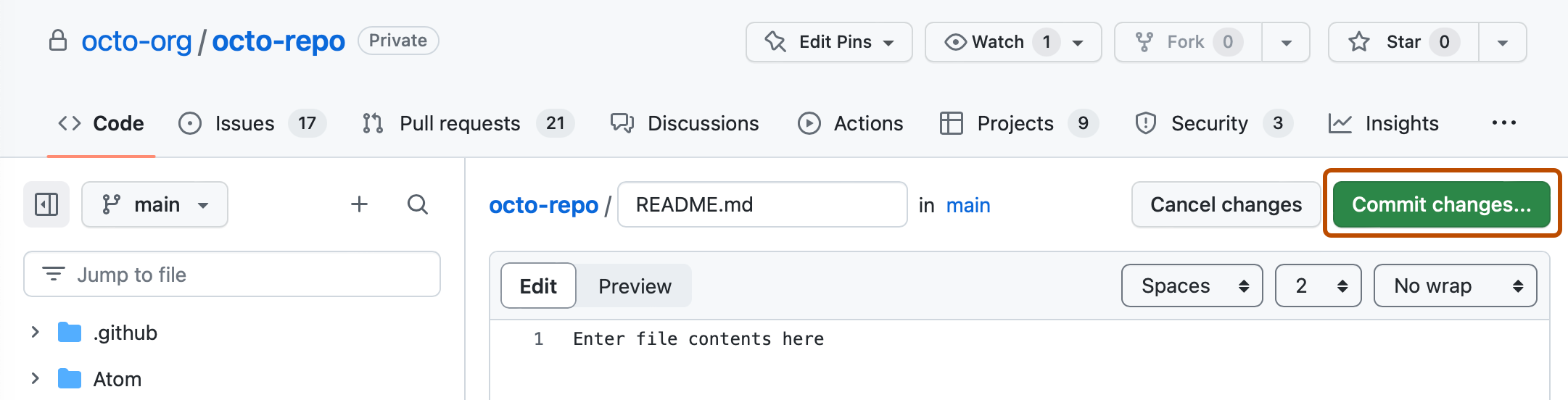
Click Commit changes... to display the commit changes form.
-
In the commit message field, type a commit message.
-
Choose whether you'd like to commit directly to the default branch, or create a new branch and start a pull request.
-
Click Commit new file to commit the workflow file to the default branch or click Propose new file to commit the file to a new branch.
-
If you created a new branch, click Create pull request and open a pull request to merge your change into the default branch.


In the suggested Рабочий процесс анализа CodeQL, code scanning is configured to analyze your code each time you either push a change to the default branch or any protected branches, or raise a pull request against the default branch. As a result, code scanning will now commence.
The on:pull_request and on:push triggers for code scanning are each useful for different purposes. See Параметры настройки рабочих процессов для сканирования кода and Активация рабочего процесса.
For information on bulk enablement, see Настройка расширенной настройки для сканирования кода с помощью CodeQL в масштабе.
Next steps
After your workflow runs successfully at least once, you are ready to start examining and resolving code scanning alerts. For more information on code scanning alerts, see О предупреждениях о сканировании кода and Оценка оповещений сканирования кода для репозитория.
Learn how code scanning runs behave as checks on pull requests, see Рассмотрение оповещений проверки кода в запросах на вытягивание.
You can find detailed information about your code scanning configuration, including timestamps for each scan and the percentage of files scanned, on the tool status page. For more information, see Use the tool status page for code scanning.