If you do not need a highly customizable code scanning configuration, consider using default setup for code scanning. For more information, see Informationen zu Konfigurationstypen für die Code-Analyse.
Prerequisites
Your repository is eligible for advanced setup if it meets these requirements.
- It uses CodeQL-supported languages or you plan to generate code scanning results with a third-party tool.
- GitHub Actions ist aktiviert.
- Es ist öffentlich sichtbar, oder GitHub Code Security ist aktiviert.
Configuring advanced setup for code scanning with CodeQL
You can customize your CodeQL analysis by creating and editing a workflow file. Selecting advanced setup generates a basic workflow file for you to customize using standard workflow syntax and specifying options for the CodeQL action. See Workflows and Workflowkonfigurationsoptionen für die Codeüberprüfung.
Beim Einsatz von Aktionen zum Ausführen von code scanning werden Minuten verwendet. Weitere Informationen findest du unter Abrechnung für GitHub Actions.
-
Navigieren Sie auf GitHub zur Hauptseite des Repositorys.
-
Klicke unter dem Repositorynamen auf Settings. Wenn die Registerkarte „Einstellungen“ nicht angezeigt wird, wähle im Dropdownmenü die Option Einstellungen aus.

-
Klicke im Abschnitt „Security“ der Randleiste auf Advanced Security.
-
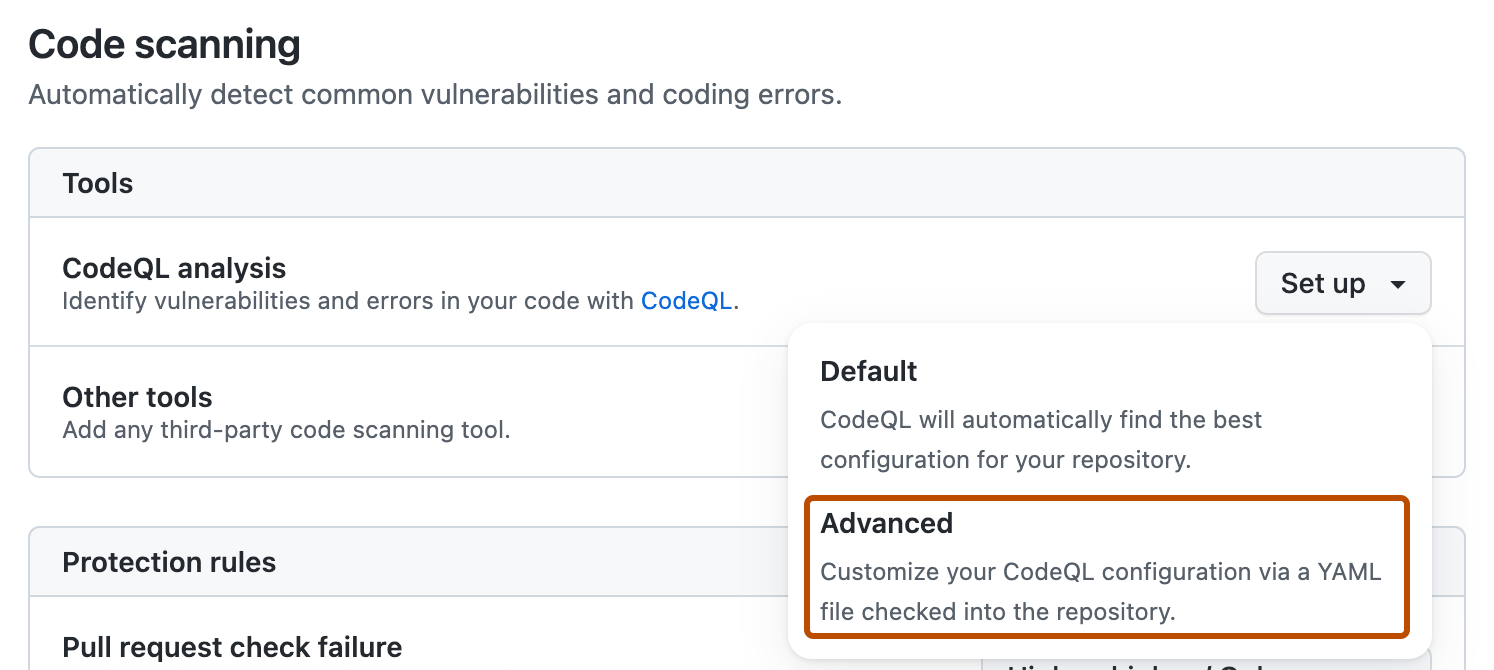
Scroll down to "Code Security", in the "CodeQL analysis" row select Set up , then click Advanced.
Hinweis
If you are switching from default setup to advanced setup, in the "CodeQL analysis" row, select , then click Switch to advanced. In the pop-up window that appears, click Disable CodeQL.
-
To customize how code scanning scans your code, edit the workflow.
Generally, you can commit the CodeQL-Analyseworkflow without making any changes to it. However, many of the third-party workflows require additional configuration, so read the comments in the workflow before committing.
For more information, see Workflowkonfigurationsoptionen für die Codeüberprüfung and CodeQL code scanning for compiled languages.
-
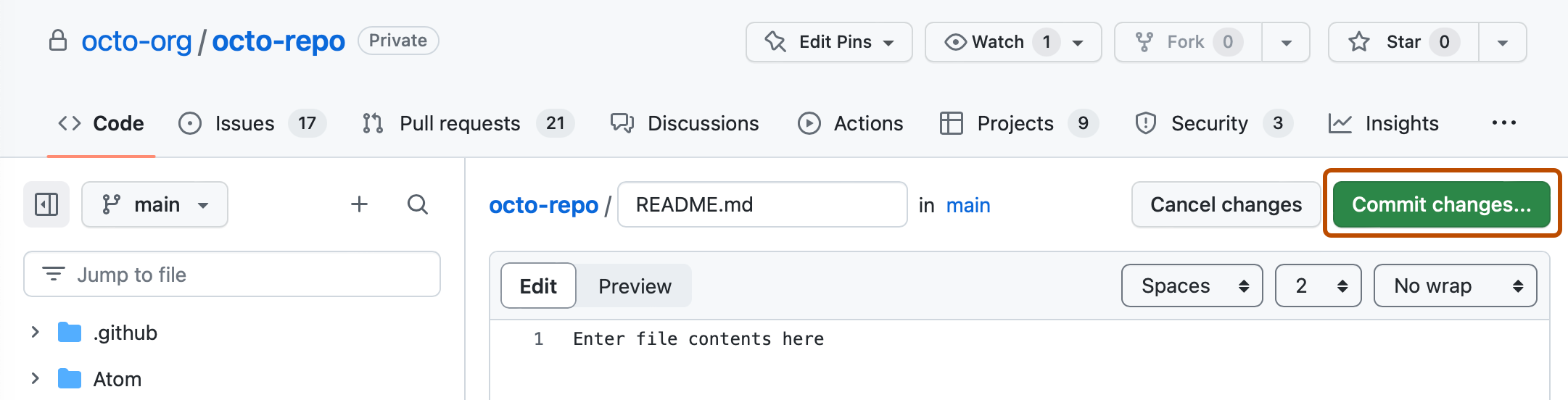
Click Commit changes... to display the commit changes form.
-
In the commit message field, type a commit message.
-
Choose whether you'd like to commit directly to the default branch, or create a new branch and start a pull request.
-
Click Commit new file to commit the workflow file to the default branch or click Propose new file to commit the file to a new branch.
-
If you created a new branch, click Create pull request and open a pull request to merge your change into the default branch.


In the suggested CodeQL-Analyseworkflow, code scanning is configured to analyze your code each time you either push a change to the default branch or any protected branches, or raise a pull request against the default branch. As a result, code scanning will now commence.
The on:pull_request and on:push triggers for code scanning are each useful for different purposes. See Workflowkonfigurationsoptionen für die Codeüberprüfung and Auslösen eines Workflows.
For information on bulk enablement, see Konfigurieren des erweiterten Setups für das Codescanning mit CodeQL im großen Stil.
Configuring code scanning using third-party actions
GitHub includes workflow templates for third-party actions, as well as the CodeQL action. Using a workflow template is much easier than writing a workflow unaided.
Beim Einsatz von Aktionen zum Ausführen von code scanning werden Minuten verwendet. Weitere Informationen findest du unter Abrechnung für GitHub Actions.
-
Navigieren Sie auf GitHub zur Hauptseite des Repositorys.
-
Klicke unter dem Repositorynamen auf Actions.

-
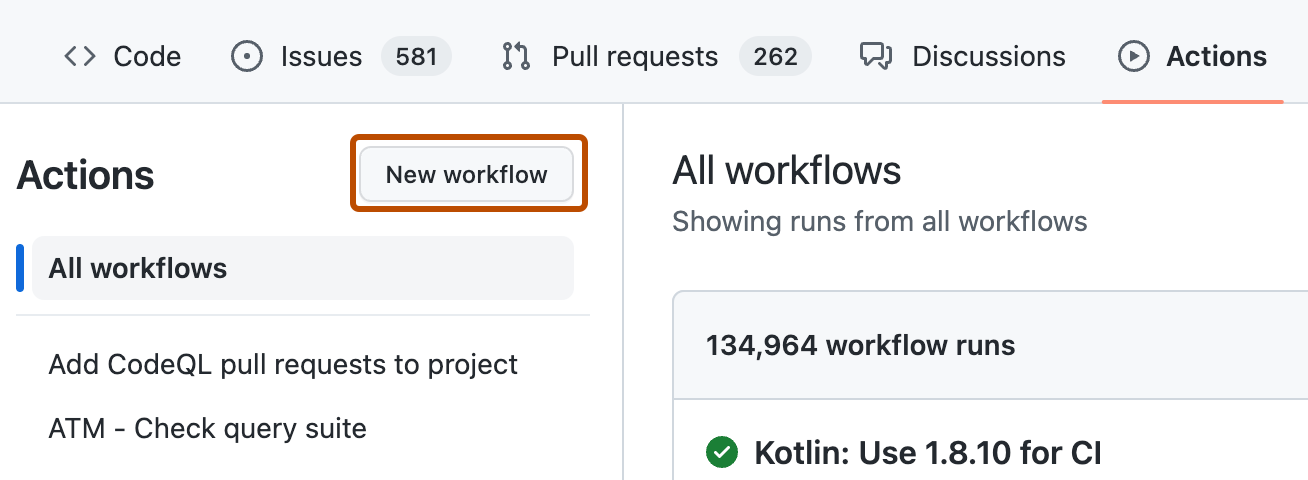
If the repository has already at least one workflow configured and running, click New workflow to display workflow templates. If there are currently no workflows configured for the repository, go to the next step.
-
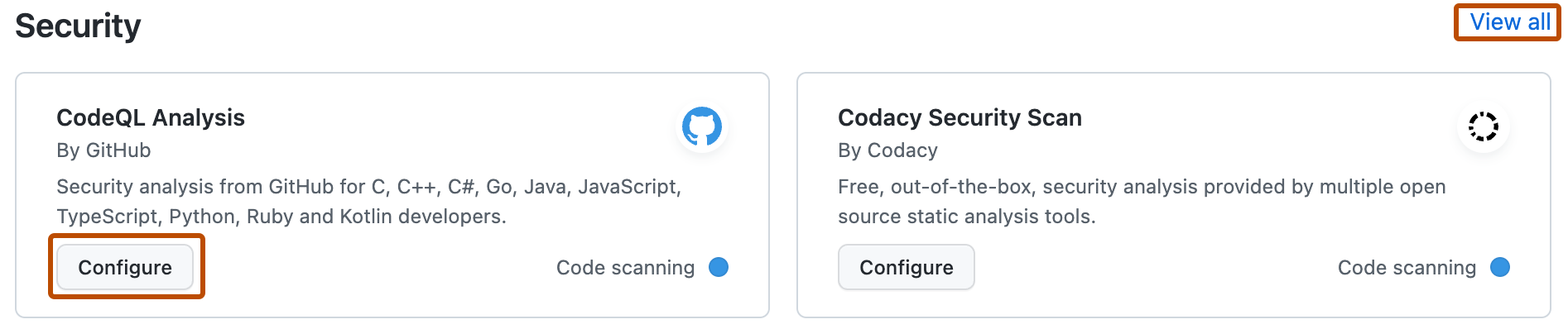
In the "Choose a workflow" or "Get started with GitHub Actions" view, scroll down to the "Security" category and click Configure under the workflow you want to configure. You may need to click View all to find the security workflow you want to configure.
-
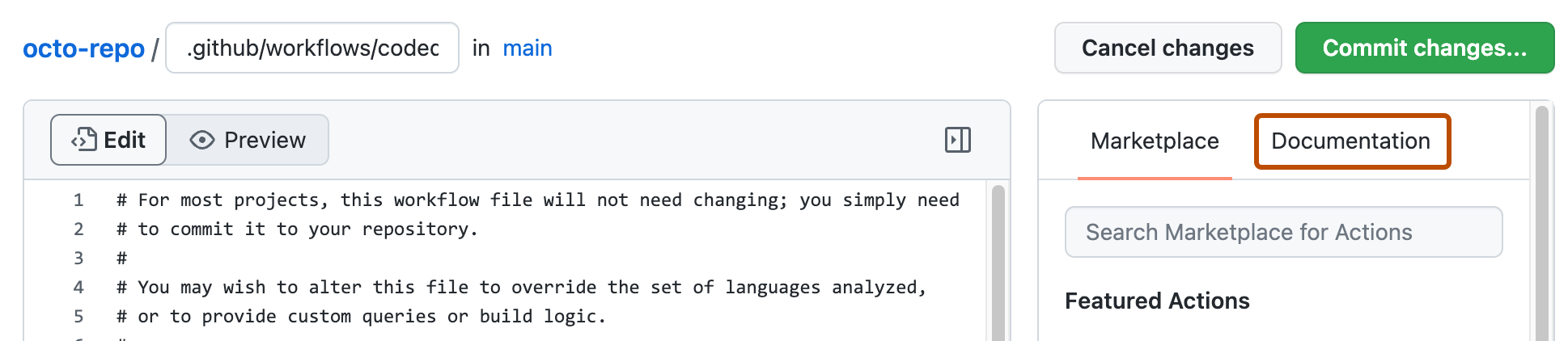
Follow any instructions in the workflow to customize it to your needs. For more general assistance about workflows, click Documentation on the right pane of the workflow page.
-
When you have finished defining your configuration, add the new workflow to your default branch.
For more information, see Verwenden von Workflowvorlagen and Workflowkonfigurationsoptionen für die Codeüberprüfung.


Next steps
After your workflow runs successfully at least once, you are ready to start examining and resolving code scanning alerts. For more information on code scanning alerts, see Informationen zu Codeüberprüfungswarnungen and Bewertung von Code-Scanning-Warnungen für Ihr Repository.
Learn how code scanning runs behave as checks on pull requests, see Filtern von Codescanbenachrichtigungen in Pull-Anforderungen.
You can find detailed information about your code scanning configuration, including timestamps for each scan and the percentage of files scanned, on the tool status page. For more information, see Use the tool status page for code scanning.