Viewing malware alerts for your repository
- On GitHub, navigate to the main page of the repository.
- Under the repository name, click the Security and quality tab. If you cannot see the " Security and quality" tab, select the dropdown menu, and then click Security and quality.
- In the "Findings" section of the sidebar, select the Dependabot dropdown menu, then click Malware.
- Optionally, use the search bar or filter dropdown menus to find alerts matching specific criteria.
Viewing malware alerts for your organization
- In the upper-right corner of GitHub, click your profile picture, then click Organizations.
- Click the name of the organization you want to view.
- Under your organization name, click the Security and quality tab.
- In the "Findings" section of the sidebar, select the Dependabot dropdown menu, then click Malware.
- Optionally, use the search bar or filter dropdown menus to find alerts matching specific criteria.
Viewing malware alerts for your enterprise
- Navigate to your enterprise. For example, from the Enterprises page on GitHub.com.
- At the top of the page, click the Security and quality tab.
- In the "Findings" section of the sidebar, select the Dependabot dropdown menu, then click Malware.
- Optionally, use the search bar or filter dropdown menus to find alerts matching specific criteria.
Dismissing malware alerts
- Navigate to the Dependabot malware alerts view for your repository, organization, or enterprise.
- Click the name of the malware alert you want to dismiss.
- In the top-right corner, click Dismiss alert , then select a reason for dismissing the alert.
- Optionally, write a dismissal comment. The dismissal comment will be added to the alert timeline and can be used as justification during auditing and reporting.
- Click Dismiss alert.
Reopening a dismissed malware alert
-
Navigate to the Dependabot malware alerts view for your repository, organization, or enterprise.
-
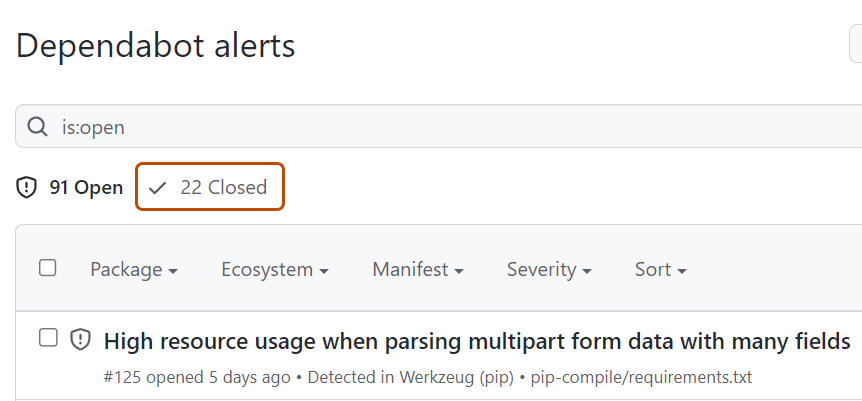
To view closed alerts, click NUMBER Closed.
-
Click the alert that you would like to view or update.
-
In the top-right corner, click Reopen.

Next steps
To help reduce false positives for internal packages and low-risk alerts, you can configure Dependabot auto-triage rules to automatically dismiss alerts that meet certain criteria. See About Dependabot auto-triage rules.